 Tendrl
Data Export & Bulk Registration
Two dashboard tools for working with your account in bulk: exporting your message and audit history to a file, and registering many devices in a single step. Both are also plain HTTP endpoints if you'd rather script them.
Exporting data#
Every list view that has an Export CSV button downloads exactly what you're looking at: the same rows, in the same order, honoring the filters on the Audit Log. The Messages export always covers the whole account rather than the entity you are filtered to. Large result sets are streamed: Contact writes rows to the download as it reads them from the database, in pages of 1,000, so an account with a year of history never has to buffer the whole export in memory (and you start getting bytes right away).
Two things are exportable today: messages and the audit log.
Messages#
From the Messages page, click Export CSV. The file mirrors the message list (one row per publish message, newest first) with these columns:
| Column | Meaning |
|---|---|
id |
Message ID |
source |
Sender resource path |
destination |
Recipient resource path |
msgType |
Always publish for exports |
data |
The message payload |
tags |
Context tags |
timestamp |
When it was published |
The endpoint is:
GET https://app.tendrl.com/api/messages/export
Query parameters:
format:csv(default) orjsonentity_name: restrict to messages sent or received by one entity, exactly like the entity filter on the Messages page
Audit log#
From the Audit Log page, click Export CSV. The export carries whatever resourceType and action filters you have set on the page, newest first, with these columns:
| Column | Meaning |
|---|---|
id |
Audit entry ID |
action |
What happened (e.g. create, delete, export) |
resourceType |
The kind of resource acted on |
resourceId |
The resource's ID |
resourceName |
The resource's name |
userEmail |
Who did it |
timestamp |
When |
details |
Extra context, as JSON |
The endpoint is:
GET https://app.tendrl.com/api/audit-log/export
Query parameters:
format:csv(default) orjsonresourceType: filter to one resource typeaction: filter to one action
Like the audit log itself, exporting it requires the Standard plan or higher (Standard, Pro, or a manually-billed/enterprise account). On Free and Starter the endpoint returns 403 with code plan_required. See Data Retention for how long audit history is kept.
Exporting the audit log is itself an audited event: it writes an entry with action export on resource type audit_log, so an export always shows up in the next audit-log view.
CSV vs JSON#
Add ?format=json to any export endpoint to stream a JSON array instead of CSV. CSV starts with a header row; JSON streams one object per record inside a [ … ] array. Both arrive as a file download (Content-Disposition: attachment).
Bulk device registration#
Registering devices one at a time is fine for a handful, but tedious for a whole fleet. The Bulk register button on the Entities page creates many devices in a single request, each with its own API key.
Two ways to specify devices#
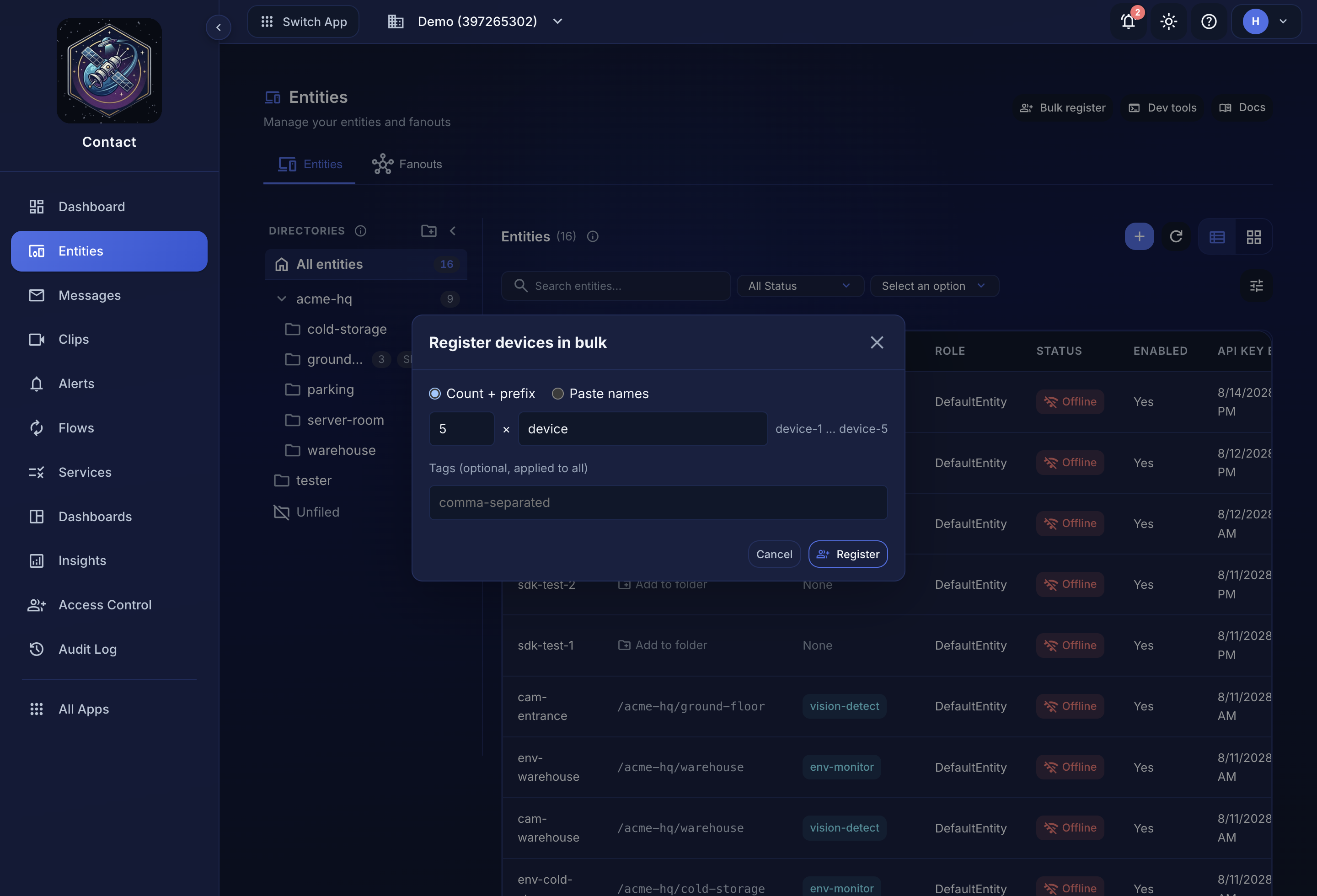 The dialog previews the names it will create before you commit.
Count + prefix: generate sequentially named devices. A count of 5 with the prefix sensor creates sensor-1 through sensor-5. Any tags (and metadata, via the API) you supply are applied to all of them.
Paste names: give an explicit list of names, one per line or comma-separated. Use this when your devices already have meaningful names that don't follow a pattern.
If a directory is selected on the Entities page when you open the dialog, the new devices are placed into that directory.
The endpoint#
POST https://app.tendrl.com/api/entities/bulk
Count + prefix:
{
  "count": 5,
  "prefix": "sensor",
  "tags": ["floor-2", "hvac"],
  "metadata": { "site": "warehouse-a" },
  "directoryId": "optional-directory-id"
}
Explicit list (takes precedence if both are supplied):
{
  "entities": [
    { "name": "lobby-cam", "tags": ["camera"] },
    { "name": "dock-cam",  "tags": ["camera"] }
  ]
}
Limits#
- At most 100 devices per request. Requests over the cap are rejected with
400. To create more, send several batches. - Your plan's device limit still applies. If the batch would push your total entity count past the plan's
MaxEntities, the whole request is rejected with403and codelimit_reached; nothing is created. Test accounts skip this check. See Pricing for per-plan device limits; if you need more than the Pro plan's 200 entities, contact us for a custom invoiced plan.
Keys are shown once#
The response returns a per-device result, including the device's API key token, and that token is shown only this one time. Contact stores a hashed key it can verify against, never the plaintext, so there is no way to retrieve the token later.
In the dashboard the results table appears with a reminder to save the keys, and a Download keys (CSV) button writes a device-keys.csv file with columns name, apiKeyId, apiKey, resourcePath, status. Download it before closing the dialog. If you lose a key, delete that device's key and issue a new one from API Keys rather than trying to recover the old value.
Each result reports a status of created or failed (with a detail reason), so a single bad name in a batch doesn't sink the rest. The response also includes a created count and each created device's resourcePath and apiKeyId.
One audit entry per batch#
A bulk registration writes a single audit-log entry, not one entry per device: action bulk_create on resource type entity, with details recording how many devices were requested and how many were created.
Related#
- Creating Entities: registering a single device
- API Keys: rotating and revoking device keys
- Messages Overview: how messages are stored and queried
- Data Retention: how long exportable history is kept
