 Tendrl
JPEG Streaming
Stream live JPEG video from devices like the OpenMV Cam directly to Tendrl. View real-time camera feeds from any entity in your dashboard.
How It Works#
Tendrl supports continuous JPEG streaming using the multipart/x-mixed-replace protocol. Your device sends JPEG frames over a long-lived HTTP connection, and Tendrl broadcasts them in real time to any connected viewers via Server-Sent Events (SSE).
Device (OpenMV) ──POST /api/stream──▶ Tendrl ──SSE──▶ Dashboard Viewer
Some OpenMV sensors have a hardware JPEG encoder; others (like the OpenMV AE3's PAG7936) don't. start_streaming() detects this automatically: it uses hardware JPEG when available, and otherwise captures RGB565 and compresses each frame in software. Streaming works either way; software compression just costs more CPU (~15 fps at QVGA on the AE3). With debug=True the client prints which path it took.
Requirements#
- An entity with the Stream permission
- An entity API key for authentication
- An OpenMV camera (a hardware JPEG encoder is not required; see the note above)
- The Tendrl MicroPython client installed on your device
Quick Start with OpenMV#
1. Create an Entity#
Create an entity in the Tendrl dashboard to represent your OpenMV camera. Make sure the entity's role includes the entity:Stream permission.
2. Get the Entity API Key#
Navigate to the entity detail page and copy the API key. This key authenticates your device when streaming.
3. Configure the Tendrl Client#
Create a config.json file in the root of your device's filesystem (/flash/config.json on OpenMV):
{
  "api_key": "YOUR_ENTITY_API_KEY",
  "wifi_ssid": "YOUR_WIFI_SSID",
  "wifi_pw": "YOUR_WIFI_PASSWORD"
}
4. Upload the Streaming Script#
Use OpenMV IDE to upload the following script to your camera. The Tendrl client handles Wi-Fi connection, authentication, camera configuration, and the streaming protocol automatically.
Basic streaming (recommended):
from tendrl import Client

async def main():
    client = Client(mode="async", debug=True)
    client.start()

    await asyncio.sleep(5)

    # Camera is automatically configured (QVGA, JPEG, quality 70)
    client.start_streaming()

    try:
        await asyncio.sleep(3600)  # Stream for 1 hour
    except KeyboardInterrupt:
        pass
    finally:
        await client.async_stop()

asyncio.run(main())
The default settings (target_fps=15, quality=70, framesize="QVGA") are optimized for stability and image quality on most networks.
Streaming with custom settings:
# Lower quality and FPS for slower networks
client.start_streaming(target_fps=10, quality=50, framesize="QVGA")

# Higher resolution for better image quality
client.start_streaming(target_fps=15, quality=45, framesize="VGA")

# Smaller resolution for constrained bandwidth
client.start_streaming(target_fps=15, quality=50, framesize="QQVGA")
Streaming alongside messaging:
from tendrl import Client

async def main():
    client = Client(mode="async", debug=True)
    client.start()
    await asyncio.sleep(5)

    # Start streaming as a background task
    client.start_streaming()

    # Publish messages while streaming
    while True:
        client.publish(
            {"temperature": 23.5, "status": "streaming"},
            tags=["sensors"]
        )
        await asyncio.sleep(10)

asyncio.run(main())
Custom capture function (advanced):
If you need full control over camera settings, provide your own capture function.
The easiest way is the vision extension's Camera in STREAM mode: cam.jpeg already satisfies the capture_frame_func contract, and it handles the csi (current firmware) vs sensor (legacy) split for you:
from tendrl import Client
from tendrl.vision import Camera

cam = Camera(mode="stream", framesize="VGA", quality=60)   # JPEG pixformat

async def main():
    client = Client(mode="async", debug=True)
    client.start()
    await asyncio.sleep(5)

    client.start_streaming(capture_frame_func=cam.jpeg, target_fps=15)

    try:
        await asyncio.sleep(3600)
    finally:
        await client.async_stop()

asyncio.run(main())
Streaming frames you detected on
cam.jpeg() needs JPEG pixel format; the detectors need RGB565, and the sensor is in one format at a time, so you can't feed a detector from the sensor's hardware encoder. You can stream detected frames: stay in DETECT, draw onto the frame, and compress it yourself inside the capture function. Measured on an OpenMV AE3 at QVGA, that runs at 20–23 fps with face_boxes. See Streaming frames you have detected on.
If you only want video of an event, send_clip_burst() from DETECT mode is cheaper: it compresses from RGB565 itself.
If you don't want the vision add-on and drive the camera yourself, doing it correctly means handling two things Camera (and the zero-arg start_streaming() default) already handle for you:
csivssensor. Newer OpenMV firmware exposes the camera as thecsimodule (csi.CSI()); older firmware (and the compat shim on newer boards) usessensor. Importcsifirst and fall back tosensor; the legacysensor.set_pixformat(sensor.JPEG)path alone no longer works on current-firmware boards like the AE3 and N6.- Hardware JPEG isn't universal. Some sensors (e.g. the AE3's PAG7936) accept a JPEG pixel format but return non-JPEG bytes without raising, so verify the JPEG SOI marker (
FF D8) on a probe frame before trusting it; otherwise switch to RGB565 andimg.compress()in software.
Because that detection is fiddly to get right, the simplest correct option is to pass no capture function at all: client.start_streaming() uses a built-in default that already does the csi-first detection and the FF D8 probe on whatever board it's running. For the reference implementation, open the entity's Device tab and browse to default_capture_frame in the client source (the file browser maps installed .mpy back to source).
5. View the Stream#
Once your device is streaming, navigate to the entity's detail page in the Tendrl dashboard. A camera icon will appear when the stream is active; click it to open the live viewer.
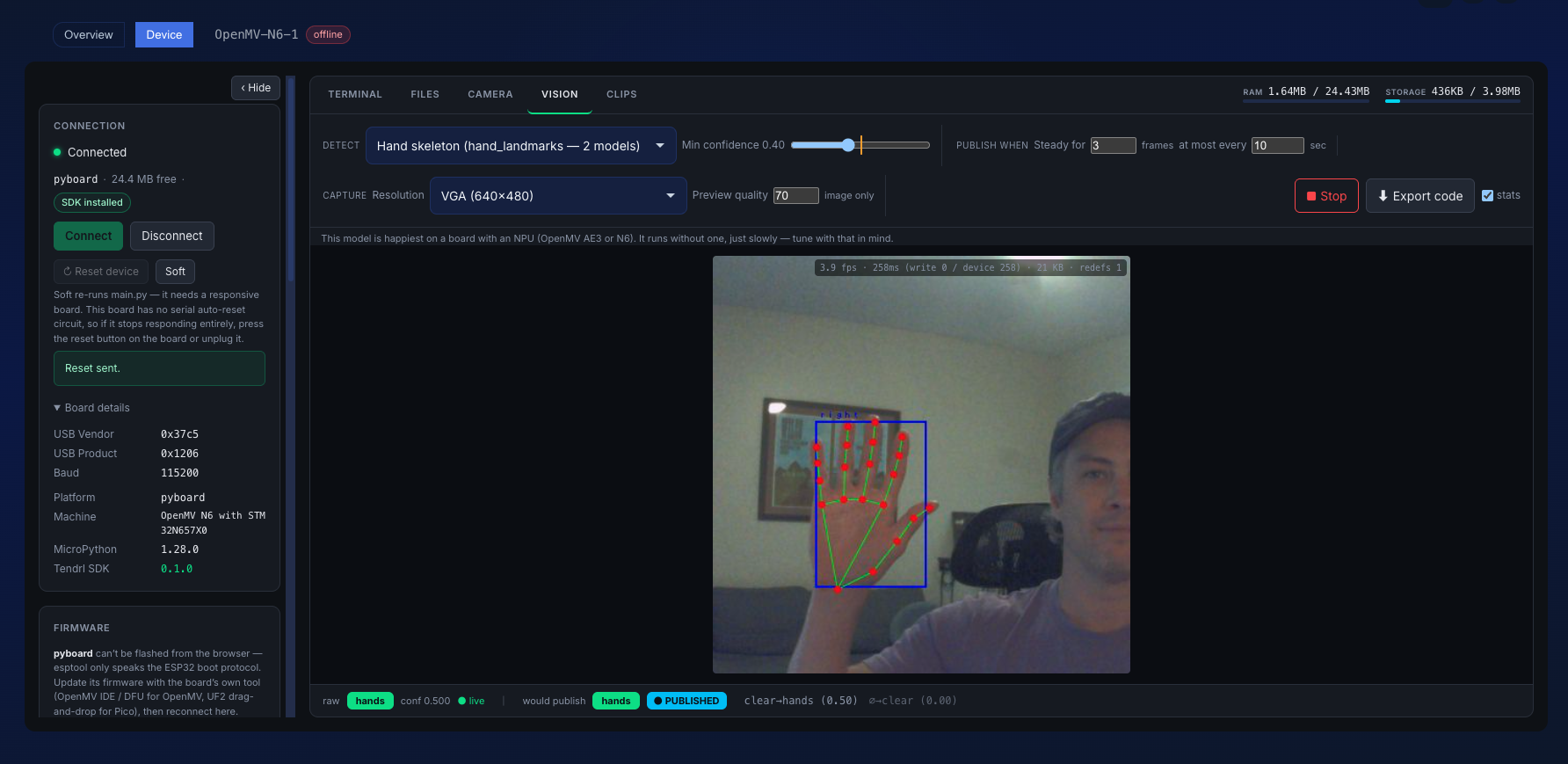 The live camera stream on the entity's detail page.
With debug=True, the client prints performance stats every 60 frames including actual FPS, frame send times, frame sizes, and network bandwidth.
API Reference#
Start Streaming (Device → Tendrl)#
POST /api/stream
Sends a continuous multipart/x-mixed-replace JPEG stream from the device.
Headers:
| Header | Value |
|---|---|
Authorization |
Bearer <entity_api_key> |
Content-Type |
multipart/x-mixed-replace; boundary=<boundary> |
Behavior:
- Connection stays open as long as the device sends frames
- Each multipart part must contain a valid JPEG image
- Invalid frames are silently skipped
Response (after stream ends):
{
  "frames_received": 1024,
  "entity_id": "60f1a..."
}
Check Stream Permission#
GET /api/stream/permission
Verify that the entity has streaming permission before starting.
Headers:
| Header | Value |
|---|---|
Authorization |
Bearer <entity_api_key> |
Response:
{
  "canStream": true,
  "message": "Entity has permission to stream"
}
Check Stream Status#
GET /api/entities/:id/stream/status
Check whether a stream is currently active for an entity. The :id parameter can be an entity ID or the entity name.
Response:
{
  "active": true,
  "entity_id": "60f1a..."
}
View Stream (SSE)#
GET /api/entities/:id/stream/view
Opens a Server-Sent Events connection to receive live JPEG frames. Each SSE data event contains a base64-encoded JPEG frame.
Headers:
| Header | Value |
|---|---|
Authorization |
Bearer <user_access_token> |
SSE Events:
event: connected
data: {"entity_id":"60f1a...","entity_name":"openmv-cam-1"}

data: /9j/4AAQSkZJRg...  (base64 JPEG)

data: /9j/4AAQSkZJRg...  (base64 JPEG)
Client example (JavaScript):
const eventSource = new EventSource(
  `/api/entities/${entityId}/stream/view`,
  {
    headers: { Authorization: `Bearer ${token}` }
  }
);

eventSource.onmessage = (event) => {
  const img = document.getElementById("stream-view");
  img.src = `data:image/jpeg;base64,${event.data}`;
};

eventSource.addEventListener("connected", (event) => {
  console.log("Stream connected:", JSON.parse(event.data));
});
Limits#
| Limit | Value |
|---|---|
| Max frame size | 10 MB |
| Max frame rate | 30 FPS |
| Idle timeout | 5 minutes (no frames) |
| Max connection duration | 24 hours |
| Streams per entity | 1 |
Frames that exceed the size limit will terminate the connection. Frames that exceed the rate limit are silently dropped.
Data Usage#
Streaming does not count against your monthly data limit, and hitting that limit never stops a stream. Stream frames are relayed to whoever is watching and then discarded — they are never stored — so they do not consume the storage your data allowance pays for. Publishing telemetry is metered; watching a camera is not.
Streamed volume is still measured and shown in your usage view, so you can see what your fleet is sending. Frames are only sent while at least one viewer is connected: a stream nobody is watching transmits nothing.
Troubleshooting#
Stream not appearing in the dashboard#
- Confirm the entity has the
entity:Streampermission in its role - Verify the
api_keyin yourconfig.jsonis correct and belongs to the entity - Make sure
mode="async"is set; streaming requires async mode - Enable
debug=Trueon the client to see connection and permission status in the console - Use the
/api/stream/permissionendpoint to confirm permissions programmatically
Stream disconnects frequently#
- Check your device's Wi-Fi signal strength
- Lower
qualityortarget_fpswhen callingstart_streaming()to reduce bandwidth - Ensure the device sends at least one frame every 5 minutes to avoid the idle timeout
- The client automatically reconnects on disconnection; check debug output for reconnection attempts
"Entity already has an active stream" error#
Only one stream per entity is allowed at a time. If a previous connection was not cleanly closed, wait a few moments for the server to detect the disconnect and release the stream slot.
Frames are being dropped#
If viewers see choppy video, the frame rate may exceed what the network can deliver. Lower target_fps or quality in your start_streaming() call. The client automatically drops frames when the network can't keep up and reports drop statistics in debug mode.
