 Tendrl
Roles
Roles define permissions by grouping one or more policies together. Every principal (a user, an entity, or an API key) is assigned exactly one role and inherits all permissions from the policies attached to it.
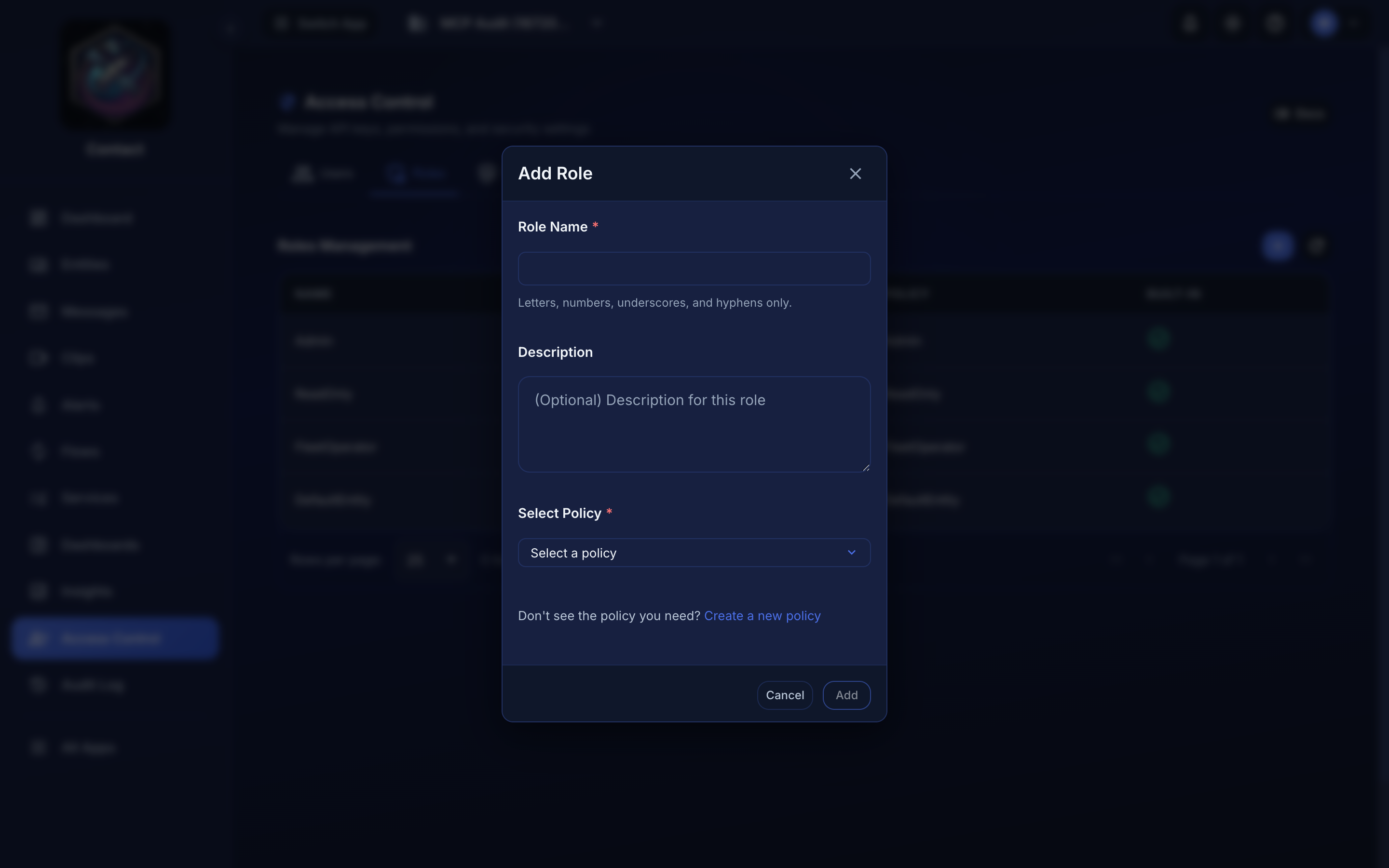 Access Control → Roles → Add.
Built-in Roles#
Contact includes four built-in roles that cannot be deleted:
| Role | Description |
|---|---|
| Admin | Full access to all resources. Uses the Admin policy which grants * action on all resources. |
| ReadOnly | Read and list access to entities, messages, connectors, flows, services, IAM and insights. It does not cover alerts, directories, fanouts, or the audit log, so those pages return 403. |
| FleetOperator | Operate devices without touching account, billing, or IAM: deploy code (entity:DeployCode), reboot, the remote command console (entity:FileSystemAccess), list/read entities and their messages, and file devices into existing directories (directory:MoveEntities). Creating or renaming folders needs directory:CreateDirectories and UpdateDirectories, which this role does not carry. Grant it account-wide, or scope it to a subtree by assigning a directory-scoped policy carrying these actions instead of this role — the device action endpoints (reboot, console, deploy, pins) all honor directory scoping. |
| DefaultEntity | Default permissions for device/MQTT connections. Allows sending messages, polling for queued messages, streaming, uploading and fetching files (entity:SendFiles, entity:GetFile), connecting (entity:Connect), reading its own claims, and reading/updating its own status table. It deliberately omits entity:ListMessages, so an entity using this role cannot list or search other messages on the account. |
New entities and entity-bound API keys are assigned the DefaultEntity role by convention. This gives a device everything it needs to send and receive its own messages without exposing the rest of the account. Grant a broader role only when a device genuinely needs it.
Custom Roles#
You can create custom roles and link them to custom policies for more specific access control:
- Navigate to Access Control in the sidebar
- Open the Roles tab
- Click the + button (tooltip: Add Role)
- Provide a name and description
- Attach one or more policies to the role
- Save
Custom roles can combine multiple policies. For example, you might create an "Operator" role that has read access to entities plus full access to connectors.
Assigning Roles to Users#
- Navigate to Access Control
- Open the Users tab
- Edit the user
- Select the desired role
- Save
Changes take effect immediately for the user's next request.
Assigning Roles to Entities and API Keys#
Entities and API keys carry their own role, independent of any user.
- Entity: edit the entity (in the dashboard, or via
PATCH /api/entities/:id) and set itsrole. The role must be a built-in role or an existing custom role on the account. - API key: edit the key under Access Control → API Keys (or
PATCH /api/api_keys/:id) and set itsrole.
A new role takes effect on the principal's next request. To let a device search account messages, for example, assign it a custom role that includes entity:ListMessages instead of the default DefaultEntity role.
