 Tendrl
Flows Overview
Flows are execution records that track how messages are processed and routed to connectors and Strand workflows. Every time a message is processed, Contact creates a flow that records which connectors were triggered, the result of each step, and any Strand workflows that were invoked.
What is a Flow?#
A flow is not something you build or design. It is a record that Contact creates automatically when a message with tags is processed. The flow documents:
- Which connectors matched the message's tags
- The execution status of each connector step (pending, success, error)
- Timing and data size metrics
- Whether any Strand workflows were triggered
Think of flows as an audit trail for message processing. You view them in the Flows page to monitor how your messages are being routed.
Flows vs. alerts
Alerts are the neighboring feature, and the two are easy to confuse because alerts appear in Flows. The split is clean:
- An alert is a rule you write — "page me when this device goes offline". It is something you author, edit, and keep.
- A flow is a record Contact writes — "this message matched these two connectors; one succeeded, one returned a 500". Nobody authors a flow.
An alert with tags produces a message, and that message produces a flow. See Where alerts fit below.
How Flows Work#
When an entity sends a message with tags, Contact processes it through the following sequence:
Tag extraction
- Contact reads the tags from the message (either top-level tags or context tags).
Strand trigger
- If Strand integration is enabled, Contact fires an asynchronous request to Strand to trigger any workflows whose tags match the message tags. This is fire-and-forget and happens regardless of local connector matching.
Connector matching
- Contact queries the connectors collection for any connectors whose tags overlap with the message's tags. Connectors are deduplicated by name to prevent double-triggers when tags overlap.
Flow creation
- A new flow document is created with one pending step per matching connector.
Task dispatch
- For each matching connector, an asynchronous task is initiated to deliver the payload. Each task carries the connector configuration and the message payload.
Step completion
- As each task finishes, it updates its corresponding step in the flow with the result (success or error), response data, and response size.
Flow completion
- Once all steps reach a terminal state, the flow is marked as completed (if all steps succeeded) or error (if any step failed). Duration is calculated from flow creation to completion.
Flow Data Model#
Each flow record contains:
| Field | Description |
|---|---|
flowId |
Unique identifier (UUID) for this flow execution |
accountNumber |
The account that owns this flow |
tags |
The message tags that triggered this flow |
status |
Current status: processing, completed, or error |
steps |
Array of step results, one per matched connector |
createdAt |
When the flow was created |
updatedAt |
When the flow was last modified |
completedAt |
When all steps finished (if applicable) |
duration |
Total execution time in milliseconds |
requestSize |
Size of the inbound message payload in bytes |
responseSize |
Combined size of all connector responses in bytes |
totalDataSize |
Total data processed in bytes |
strandTriggered |
Details of any Strand workflows that were triggered |
Steps#
Each step in a flow represents one connector execution:
| Field | Description |
|---|---|
connector |
Name of the connector that was executed |
result.status |
Step status: pending, success, or error |
result.data |
Response data from the connector |
result.statusCode |
HTTP status code (for HTTP connectors) |
result.error |
Error message if the step failed |
responseSize |
Size of this step's response in bytes |
Strand Trigger Result#
When Strand workflows are triggered, the flow records:
| Field | Description |
|---|---|
success |
Whether the trigger request succeeded |
workflowCount |
Number of Strand workflows that were invoked |
workflows |
Array of triggered workflows (ID, name, run ID, tags) |
triggeredAt |
When the Strand trigger was fired |
Where Alerts Fit#
Device and service messages are not the only thing that enters this pipeline. When an alert rule fires and the rule carries tags, Contact builds a message on the rule's behalf (message type alert, with a sender path that names the rule) and processes it exactly like any other tagged message. So a fired alert shows up in the Flows page with its own connector steps, and a webhook that rejected the page is visible as a failed step.
Two consequences worth knowing:
- A notify-only alert produces no flow. A rule with in-app notifications and no tags has nothing to route, so Contact skips the pipeline entirely rather than leaving an empty flow record behind. Its delivery is the notification bell, and the bell is where you confirm it.
- The alert's Test button produces a real flow, for a rule that has tags. Testing runs the same path a real firing would, which is what makes it a genuine end-to-end check of the rule, its tags, the connector, and the destination. Testing a notify-only rule just posts the notification.
If you are looking at Flows to answer "why didn't I get paged?", the alert's tags are the filter to use.
Tag-Based Routing#
Tags are the mechanism that connects messages to connectors and Strand workflows. The routing logic is straightforward:
- Messages carry tags (set by the sender or by validation rules).
- Connectors are configured with tags when they are created.
- Strand workflows can be exposed to Contact with tags.
When a message is processed, Contact finds all connectors whose tags have any overlap with the message's tags. If any single tag matches, the connector is included in the flow.
For example, if a message has tags ["temperature", "ops-page"] and a connector has tags ["ops-page", "slack"], the connector matches because both share the ops-page tag.
Tag names are yours to choose and carry no special meaning to Contact. A tag literally named alert is just a string — it does not create an alert rule, and an alert rule does not require a tag named alert. The examples here avoid the word for that reason.
Strand Workflow Integration#
Flows can trigger Strand workflows in addition to (or instead of) local connectors. This happens automatically when Strand integration is enabled for the account.
The trigger sends the message's tags, payload data, entity context, and a trigger depth counter (for loop prevention) to Strand. Strand then runs any workflows whose tags match.
The trigger is asynchronous and fire-and-forget -- flow processing continues regardless of whether the Strand trigger succeeds.
Validation Forwarding#
If the source entity's service has forwardValidation enabled, the flow payload sent to connectors will include validation results (actionResults and validationStatus) alongside the message data. This allows downstream systems to react to validation outcomes.
Flow Statuses#
| Status | Meaning |
|---|---|
processing |
Flow is active; one or more connector tasks are still running |
completed |
All connector steps finished successfully |
error |
One or more connector steps failed |
Viewing Flows#
Navigate to the Flows page in the Contact UI to see a list of recent flow executions. You can:
- Filter by status, tags, date range, and duration
- Click a flow to see step-by-step results for each connector
- View Strand workflow trigger details
- Monitor execution times and data throughput
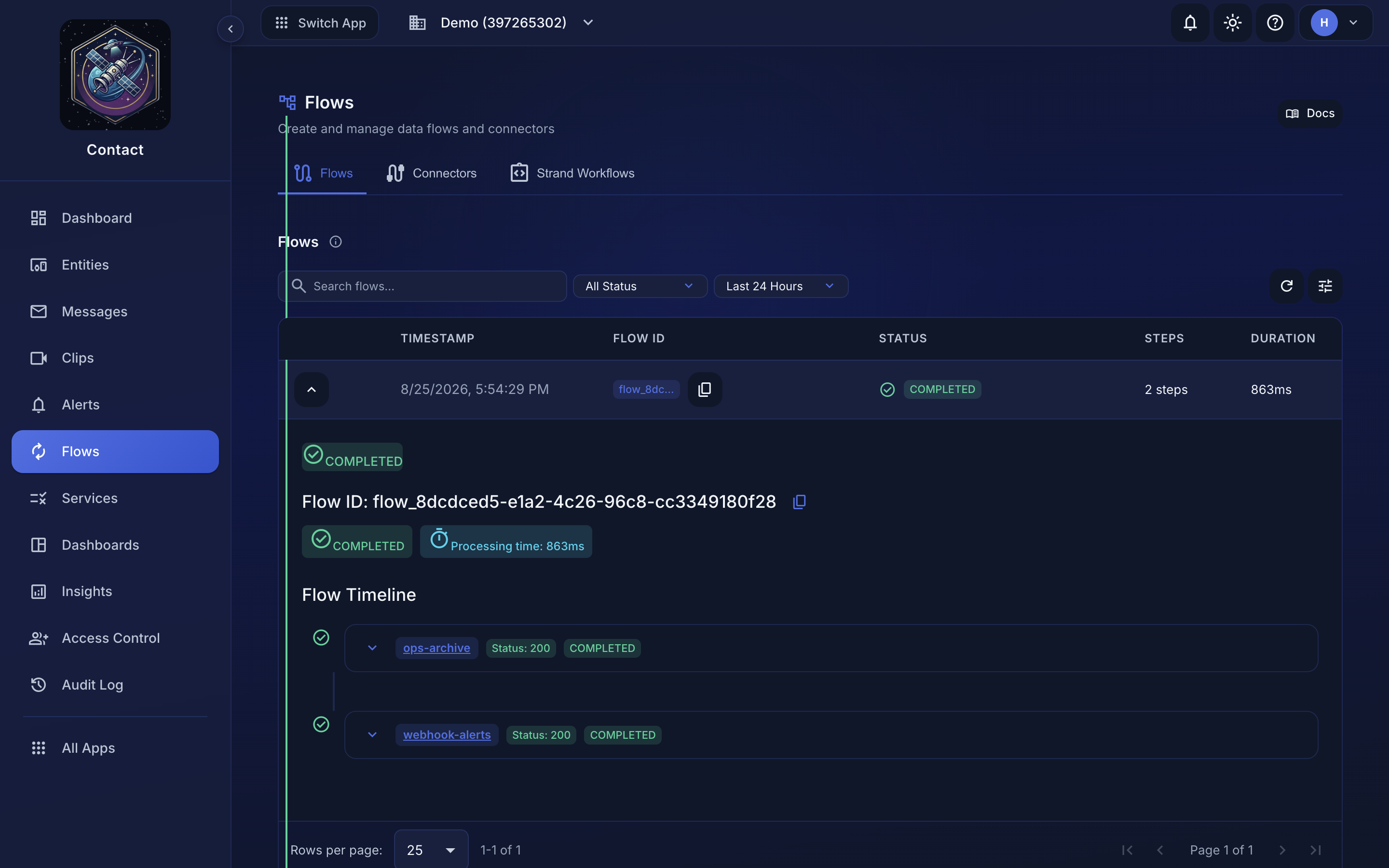 Expanding a flow shows one step per matching connector, each with its own status.
Next Steps#
- Connectors Overview -- configure the connectors that flows route messages to
- Alerts -- the rules that fire messages into these flows
- API Reference -- query flow records programmatically
- Sending Messages -- how to send messages with tags
