 Tendrl
How Flows Are Created
Flows are created automatically by Contact when messages are processed. You do not create flows manually. Instead, you configure the building blocks -- tags on messages and tags on connectors -- and Contact handles the routing.
Prerequisites#
For a flow to be created, you need:
- A source of tagged messages — an entity that sends them, or an alert rule that fires them on your behalf.
- One or more connectors configured with tags that overlap the message tags.
Optionally:
- Strand integration enabled on the account, with Strand workflows exposed to Contact via matching tags.
Step-by-Step Setup#
1. Configure a Connector with Tags#
Connectors are the destinations that flows route messages to. Each connector has a set of tags that determine which messages it receives.
Open Flows in the sidebar, switch to the Connectors tab, and create a connector (e.g., an HTTP webhook). When configuring it, assign tags that describe what kind of messages it should receive:
- A connector with tags
["temperature", "ops-page"]will be included in any flow triggered by a message that carries either thetemperatureorops-pagetag.
2. Send a Message with Tags#
When an entity sends a message, include tags in the message context:
{
  "data": {
    "temperature": 42.5,
    "unit": "celsius"
  },
  "context": {
    "tags": ["temperature", "ops-page"]
  }
}
3. Flow Is Created Automatically#
When Contact processes this message, it:
- Finds all connectors whose tags match any of the message tags.
- Creates a flow document with one step per matching connector.
- Dispatches each connector asynchronously.
- Triggers any matching Strand workflows (if Strand integration is enabled).
The flow appears immediately in the Flows page with a processing status.
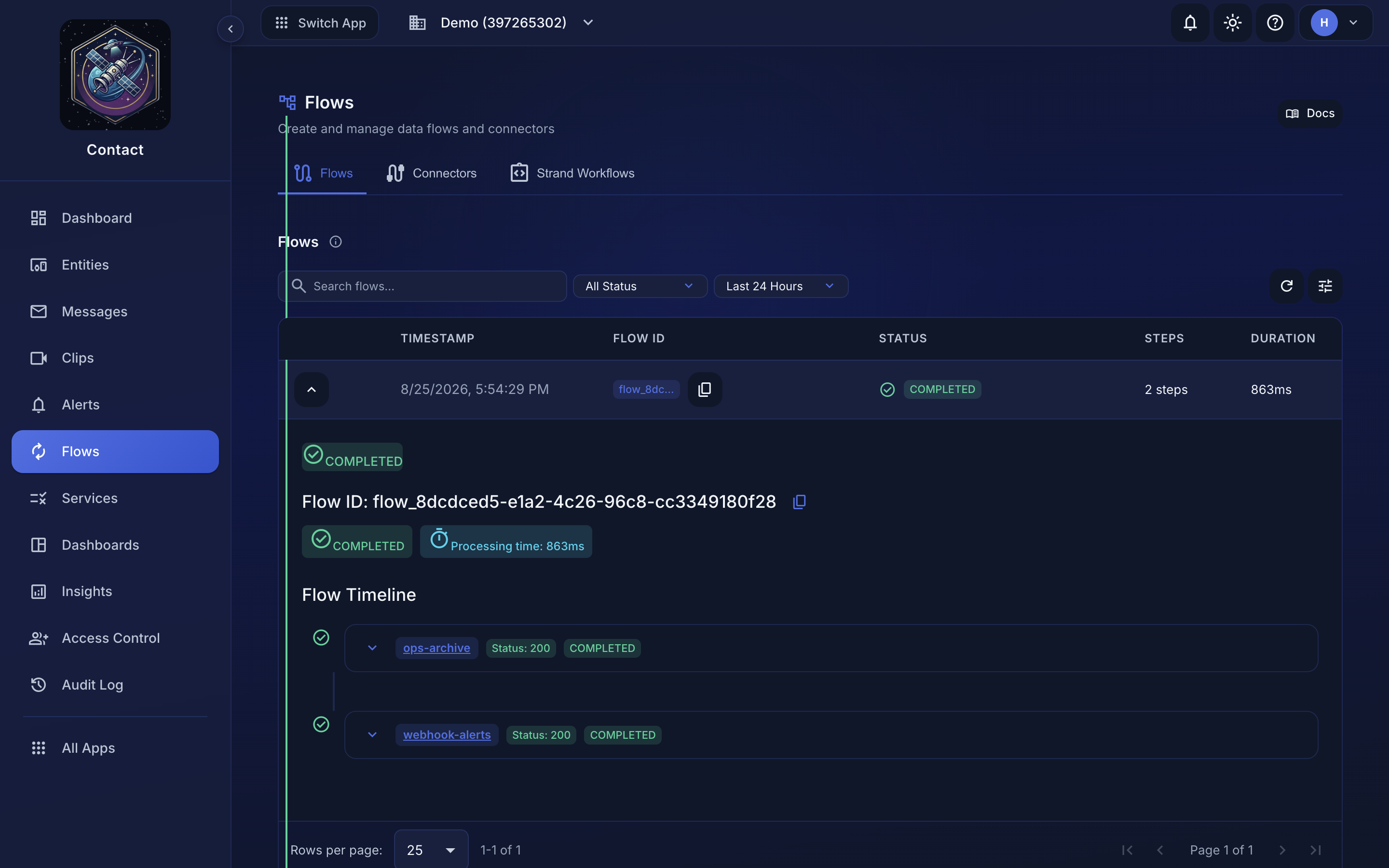 A flow on the Flows page, with one step per matching connector.
4. Monitor Execution#
Each connector step runs asynchronously. As steps complete, the flow document is updated. Once all steps finish, the flow status changes to completed or error.
Tag Matching Rules#
- Tag matching uses an
$in(any-match) operator. If a connector shares any tag with the message, it is included. - A tag-matched connector is then dropped if its
allowedSourceslist excludes the sending entity. If every matched connector is filtered out this way, no flow record is written for the message, so an empty Flows page can mean anallowedSourcesmismatch rather than a tag mismatch. - If multiple connectors match, the flow will have one step per connector. All run in parallel.
- Connectors are deduplicated by name. If a connector matches on multiple tags, it still only appears once in the flow.
- If no connectors match the message tags, the message is still stored and the send still succeeds; this is not an error. A flow is still recorded, carrying just the Strand trigger step, so a message that routed nowhere is still accounted for rather than vanishing.
Example: Multi-Connector Flow#
Suppose you have three connectors:
| Connector | Tags |
|---|---|
ops-webhook |
ops-page |
s3-archive |
temperature, humidity |
slack-notify |
critical |
A message with tags ["temperature", "ops-page"] would create a flow with two steps:
ops-webhook(matched onops-page)s3-archive(matched ontemperature)
The slack-notify connector would not be included because it has no overlapping tags.
Validation-Generated Tags#
If the sending entity has a service, each of the service's dynamic actions can define a tags list. When that dynamic action's validation fails, those tags are injected onto the message and merged with the message's own tags before flow processing.
This lets you route failed messages independently: give a dynamic action a tag such as weather-invalid, then create a connector with that same tag, and only validation failures will flow to it. See Creating Services for where to define a dynamic action's tags.
Strand Workflow Triggers#
When Strand integration is enabled, Contact also sends the message tags to Strand's trigger endpoint. Strand workflows that have been exposed to Contact with matching tags will run. This happens in parallel with local connector execution and is recorded on the flow document under strandTriggered.
Alerts as a Message Source#
Everything above describes an entity sending a tagged message, but an alert rule is the other way a flow gets created. When a rule with tags fires, Contact composes the message itself — so it stands in for step 2 above, and steps 3 and 4 then run unchanged: same tag matching, same connectors, same flow record. You configure the tags on the rule instead of in your firmware, and nothing else changes.
A rule with no tags (in-app notifications only) never enters this pipeline and produces no flow. See Alerts and flows for the full split.
Next Steps#
- Flows Overview -- understand the flow data model and lifecycle
- Alerts -- fire tagged messages from rules instead of from device code
- Connectors Overview -- configure connector destinations
- API Reference -- query flow records via the API
