 Tendrl
The Device Tab
Every MQTT-enabled entity in Contact has a Device tab: a full hardware workbench that runs in your browser. Plug a MicroPython board into USB and you can flash firmware onto it, provision it against the entity, browse and edit its filesystem, run scripts with live output, watch its camera, and tune an on-device detector, all without installing a toolchain, a driver, or a serial terminal.
When a board is on USB, it talks to it over WebSerial, which means those tools happen entirely locally. Frames, files, Wi-Fi passwords, and API keys move between the browser tab and the USB port. They do not pass through Contact's servers. The two exceptions are the network features for already-deployed devices, the remote command console and per-entity reboot, which relay a bounded set of commands to an online device through Contact over MQTT.
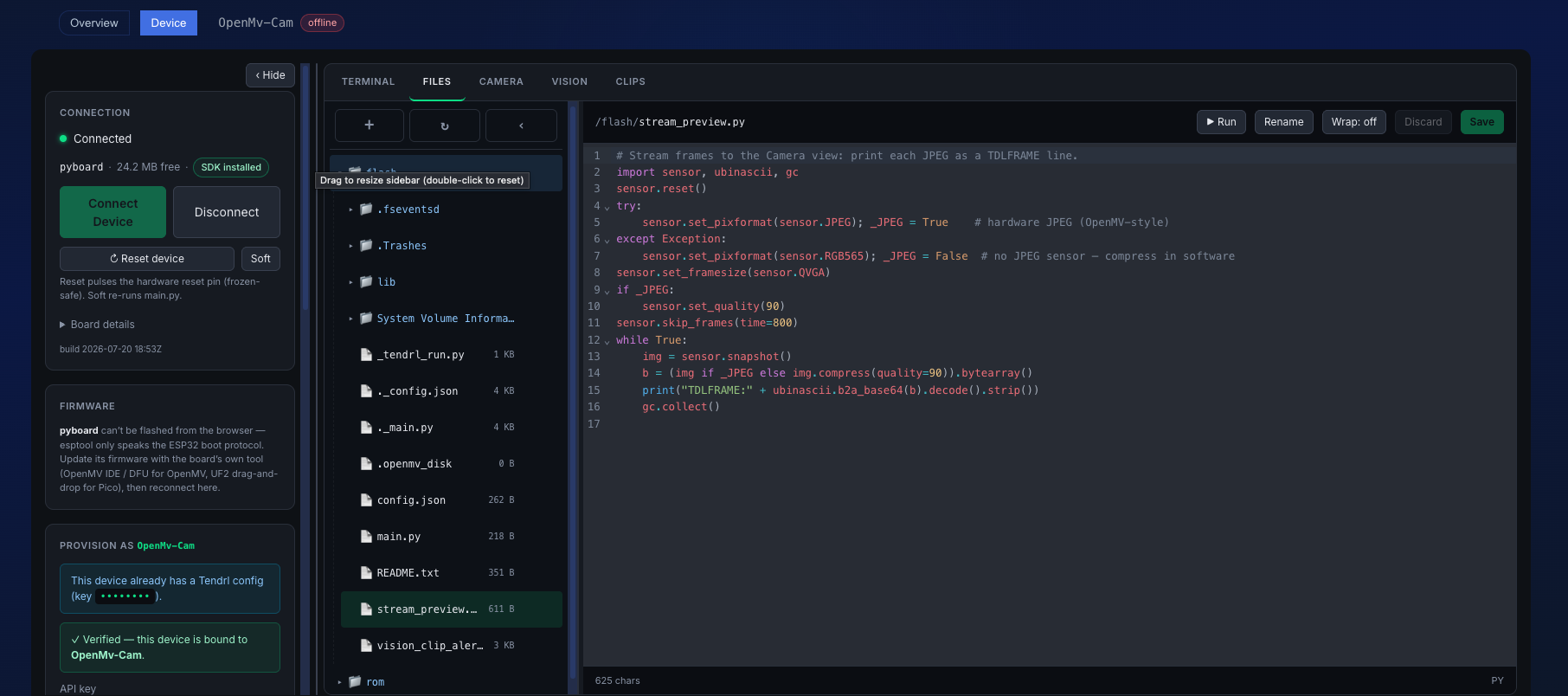 The Device tab: connect, provision, and the file / terminal / camera workspace.
What's in it#
The tab is split in two: a left sidebar with the connection lifecycle, and a right workspace with the tools.
| Connect | Pick a port, auto-detect the board, read platform / machine / USB IDs / free heap / camera sensor. Reset and BOOT controls. |
| Flash firmware | Put MicroPython on a bare ESP32-family board, from the live micropython.org build list or your own .bin. |
| Provision | Write config.json with the entity's API key and Wi-Fi, install the SDK at the tier you choose (precompiled .mpy on every board, or the low-RAM ROMFS install on ESP32), and wait for the first heartbeat. |
| Files & terminal | Lazy file tree, syntax-highlighted editor, run/stop a script with live output, drag-and-drop upload, secret masking. |
| Live metrics | A rail in the workspace tab bar shows the board's RAM and storage as used / total, with a peak marker and amber/red tinting as memory fills. Polled when idle; a running script can keep it live by calling emit_metrics(). |
| Camera & clips | Snapshot, live preview, or render frames your own running script emits. Assemble a clip exactly as the device would send it. |
| Vision playground | Tune a real on-device detector by eye: drag an ROI, move a threshold, watch the publish simulator, then export the deployable file. |
Requirements#
- A Chromium or Firefox browser. Chrome, Edge, Opera, and Firefox 151+ implement WebSerial. Safari and iOS do not; on those, the tab shows a fallback card pointing at supported browsers and the CLI.
- An MQTT-enabled entity. The tab does not appear on fanouts or on entities without MQTT.
- Edit permission on the entity. Provisioning binds hardware and writes credentials, so it is an editor-level action, and viewers do not see the tab.
- A MicroPython board on USB. See Connect for what's recognized.
Where it runs#
The same workbench ships in two places.
In Contact: the Device tab on an entity's detail page. It knows which entity you're provisioning, so it can validate the API key you paste against that entity and rotate it inline if you've lost it.
Standalone: tendrl-dev-mcp in web mode, for bench work or provisioning a batch of boards:
./tendrl-dev-mcp web
# → opens http://127.0.0.1:8811 in your default browser
Same connect, flash, provision, terminal, editor, camera, clips, and vision playground. The standalone tool has no Contact session, so you paste the entity's API key yourself (copy it from the entity's API Keys section) rather than having Contact validate it for you.
The privacy model#
This matters enough to state plainly, because it's unusual:
- The API key you paste is checked against the entity through Contact's API, then written to the board over the serial port. Contact never receives the key itself.
- The Wi-Fi password is typed into the form and written straight to
config.jsonon the device. It is session-only and never stored by Contact. - Camera frames, clips, and detector output in the workspace are captured over serial and rendered in the browser. Nothing is uploaded, and none of it requires the device to have network access at all, so you can tune a camera on a bench with no Wi-Fi in range.
- Values that look like secrets are masked by default wherever they'd be displayed: in the editor, and in terminal output. See secret handling.
Next#
Start with Connect. If your board is brand new and has no MicroPython on it yet, go to Flash firmware first.
