 Tendrl
Alerts
Alerts tell you when something happens on your fleet (a device drops offline, a device comes back, or a reading crosses a threshold) by sending a notification through a connector, straight to your in-app notification center, or both.
Alerts are the rules you write. Flows are the records Contact writes when a message — including one an alert produced — is routed to connectors. The two sit next to each other in the sidebar for that reason: you author an alert here, and you watch what its delivery actually did in Flows. See Alerts and flows for exactly where the handoff happens.
How it works#
An alert is a small rule: a trigger, the devices it watches, and at least one delivery: tags (which route to connectors) and/or in-app notifications.
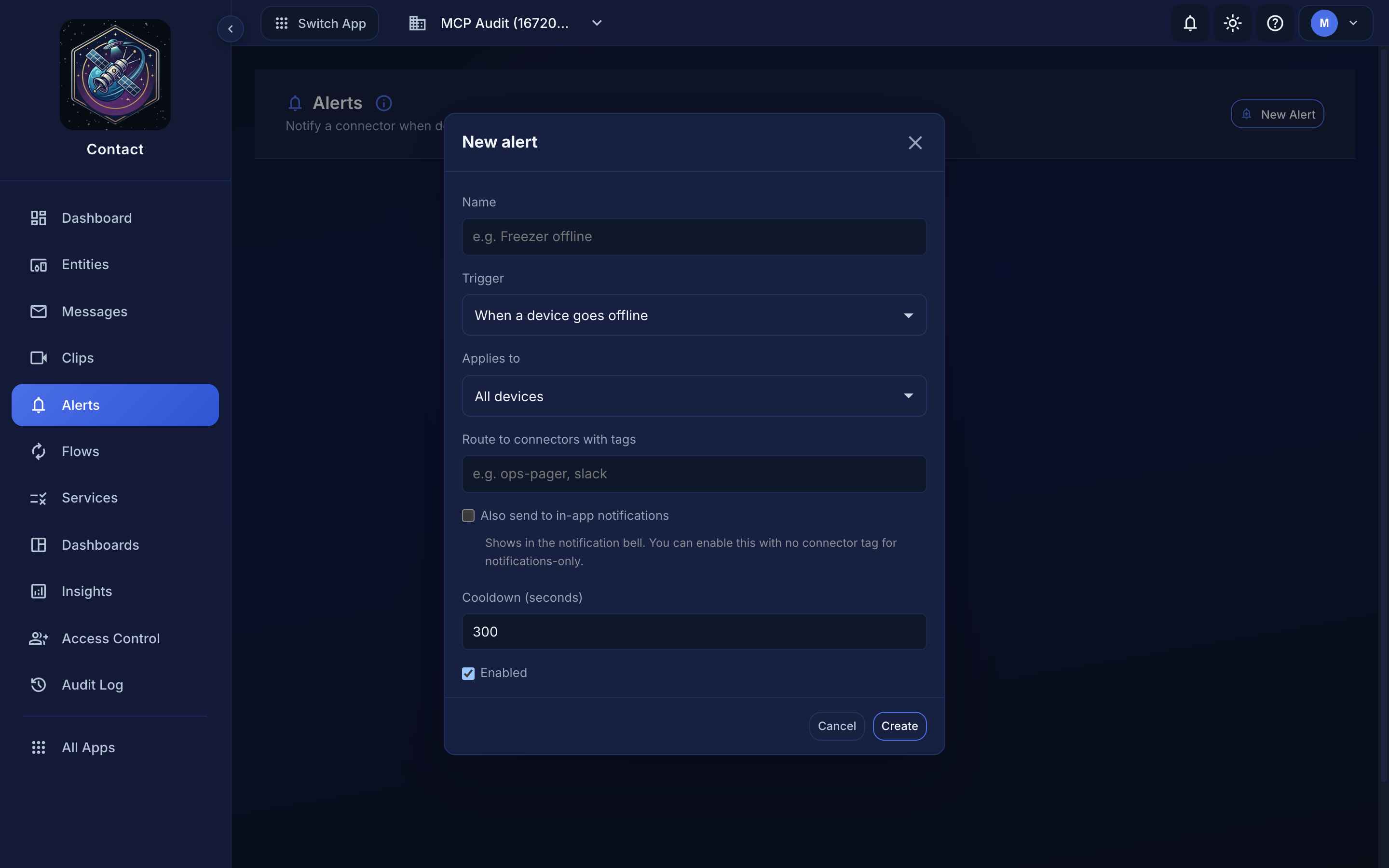 Alerts → New Alert. Cooldown suppresses repeat notifications for the same device. When the trigger fires with tags, the alert becomes a tagged message and is routed to whatever connectors listen on those tags: a webhook (Slack, Discord, PagerDuty, Teams), an MQTT topic, or a cloud target. If you already use flows and connectors, alerts plug into the exact same routing — no separate delivery path, no second set of destinations to configure.
A rule needs at least one tag or in-app notifications enabled; a rule with neither would fire into the void, so the editor won't save it.
Triggers#
| Trigger | Fires when… |
|---|---|
| Device offline | a device stops checking in (after ~5 minutes of silence) |
| Device online | a device that was offline reconnects |
| Message condition | an incoming message field matches a condition you set (e.g. temp gt 30) |
Message-condition rules reuse the same operators as services: eq, ne, gt, lt, ge, le, contains, startsWith, endsWith, and more. The alert fires when the field satisfies the condition.
Choosing which devices#
An alert can watch:
- all devices,
- devices with certain tags,
- a specific list of devices, or
- a directory subtree, meaning every device under
/plant-a, including sub-folders. This is the easy way to say "alert me about anything in this site".
Routing to a connector#
Give the alert one or more tags, then make sure a connector listens on one of them. For example, tag an alert ops-pager and point an HTTP connector at your incident webhook: every firing of that alert posts to it. Alerts show up in Flows alongside your other routed messages, so you can see exactly what was sent and whether delivery succeeded.
Alerts and flows#
This is the one place the two features touch, so it is worth being precise about what happens when a rule fires:
| Alerts | Flows | |
|---|---|---|
| What it is | A rule you author | A record Contact writes |
| You create it | Yes — Alerts → New Alert | No, never; it is produced by routing |
| Answers | "Tell me when this happens" | "Where did that message go, and did it land?" |
| Lives for | As long as you keep the rule | One message-processing run |
When a rule with tags fires, Contact builds a small message on the rule's behalf — message type alert, with a sender path that names the rule it came from, carrying the rule name, the entity, and the event — and pushes it through the ordinary message pipeline. From that point it is treated like any other tagged message:
- Matching Strand workflows are triggered on those tags.
- Connectors listening on those tags are matched and dispatched.
- A flow is recorded, with one step per connector, so a failed webhook shows up as a failed step rather than disappearing.
A rule with no tags (in-app notifications only) never enters that pipeline. There is nothing to route, so no message and no flow are created — the bell is the whole delivery. That is by design: a notify-only rule shouldn't leave empty flow records behind.
So: if an alert fired but nobody was paged, Flows is where you look. Filter by the rule's tags and you'll see the firing, its connector steps, and any error the destination returned. If the alert produced no flow at all, either the rule is notify-only or it fired with tags no connector listens on.
An alert fired with tags that match no connector still records a flow — one carrying just the Strand trigger step. An empty-looking flow on an alert's tags usually means the connector you expected to be listening isn't, or its tags don't overlap.
In-app notifications#
Turn on in-app notifications on a rule and every firing lands in the notification bell in the navbar; no connector required. A notify-only rule is the fastest way to get alerting working: no webhook to stand up, nothing to configure.
From the bell you can mark a notification read, mark all read, or clear the list; clicking one takes you to the device it's about. Notifications are delivered even when the account is at its data limit, since alerting is platform traffic, not billed telemetry.
Avoiding alert storms#
Each alert has a cooldown (default 5 minutes). After a rule fires for a device, it won't fire again for that device until the cooldown passes, so a device that flaps, or a site-wide outage, won't bury you in duplicate notifications. Offline detection is naturally debounced too: a device has to be silent for several minutes before it's considered offline.
Test before you rely on it
Every alert has a Test button. It fires the alert immediately through its connector so you can confirm the wiring; no need to wait for a real event. A test firing takes the same path as a real one, so a rule with tags appears in Flows too — which makes it the fastest way to prove the whole chain (rule → tags → connector → destination) before an incident depends on it. A notify-only rule has no chain to prove, so its test simply posts the notification.
Next steps#
- Flows Overview — the record of where a fired alert was routed
- Connectors Overview — the destinations alert tags route to
- Device Directories — scope an alert to a site or subtree
