 Tendrl
Passing Data Between Steps
Learn how to pass data from one workflow step to another.
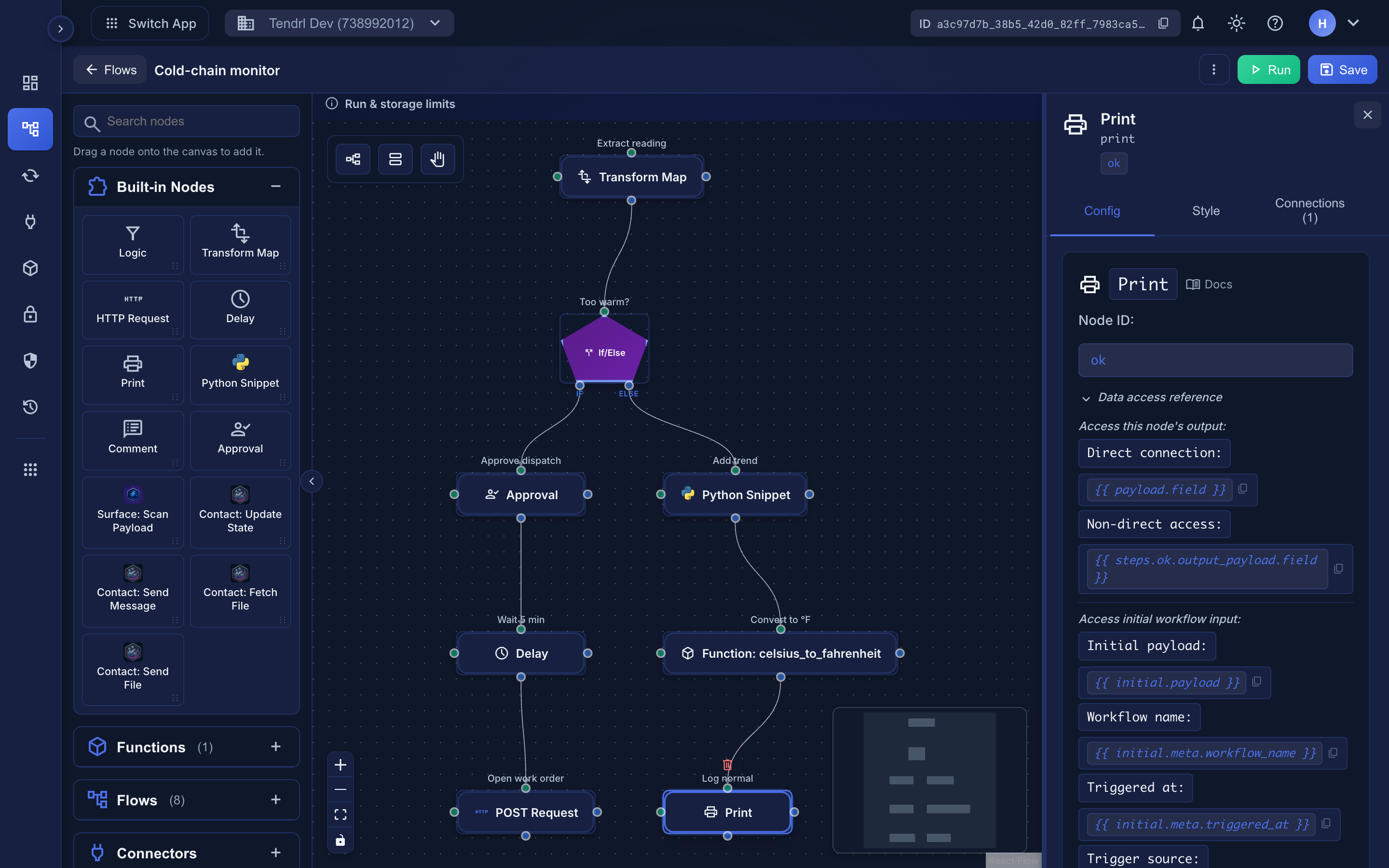 Every node's inspector carries a Data access reference with copy buttons — the quickest way to get the exact expression for the value you want.
Each node in your workflow produces output events. Subsequent nodes can access this output using Jinja2 templating with JSONPath support.
All node types now support the same powerful templating features:
- Full Jinja2 expressions and filters
- JSONPath queries for complex data extraction
- Access to steps, variables, and vault values
- Consistent syntax across all nodes
Automatic Data Passing#
When nodes are directly connected, data is automatically passed from one node to the next. You can access the previous node's output using payload:
{{ payload.field_name }}
{{ payload.email }}
{{ payload.user_id }}
For directly connected nodes, use payload - no need to reference the node ID!
If Node A outputs {"email": "[email protected]"} and connects to Node B:
In Node B's configuration, you can use:
{{ payload.email }}
::: Instead of:
{{ steps.node_A.output_payload.email }}
Accessing Non-Direct Nodes#
When you need to access data from a node that's not directly connected, use step references:
Step References#
Node ID#
Every node has a unique ID. You can see it in the Node Inspector when you select a node.
- Click on a node in your workflow
- Look at the Node Inspector panel on the right
- The Node ID is displayed at the top
Node ID Format in Templates#
Node IDs are short alphanumeric strings (e.g., node_a1b2c3d4) that work directly in Jinja2 dot notation:
{{ steps.node_a1b2c3d4.output_payload.field_name }}
Older workflows may have node IDs with hyphens. For those, use bracket notation: {{ steps['node-1234567890'].output_payload }}. Hyphens in Jinja2 are interpreted as subtraction.
Accessing Output from Any Step#
{{ steps.{node_id}.output_payload.field_name }}
If you have a workflow like: Node A -> Node B -> Node C
In Node C, to access Node A's output (not directly connected): :::
    {{ steps.node_A.output_payload.email }}
    {{ steps.node_A.output_payload.user_id }}
For example, if the node ID is node_a1b2c3d4: :::
    {{ steps.node_a1b2c3d4.output_payload.email }}
    {{ steps.node_a1b2c3d4.output_payload.user_id }}
::: But to access Node B's output (directly connected), just use: :::
{{ payload.email }}
Available Properties#
| Property | Description |
|---|---|
steps.{node_id}.output_payload |
The payload (single output event) |
steps.{node_id}.output_meta |
The metadata from the output |
steps.{node_id}.output |
Full output array (all events) |
steps.{node_id}.output_count |
Number of output events |
Most nodes produce a single output, so output_payload is usually what you want. If a node can produce multiple outputs, use output to access the array.
Common Patterns#
Pattern 1: Lookup and Use (Direct Connection)#
graph LR
    A[HTTP Request: user_lookup] --> B[HTTP Request: send_email]
Configuration for Node B:
- URL:
https://api.example.com/send - Body:
  {
    "to": "{{ payload.email }}"
  }
payload works Since Node B is directly connected to Node A, Node A's output becomes Node B's input, accessible via payload.
Pattern 2: Transform and Pass (Direct Connection)#
graph LR
    A[Transform: user_transform] --> B[HTTP Request: update_profile]
Configuration for Node B:
- Body:
{{ payload | tojson }}
Since Node B is directly connected to the Transform node, use payload instead of steps.user_transform.output_payload.
Pattern 3: Filter and Process (Direct Connection)#
graph LR
    A[Filter: active_users] --> B[Process Active Users]
Configuration for Node B:
- Condition:
payload.active == true
Filter nodes pass through data that matches the condition, so the next node receives that data as payload.
When to Use payload vs steps.{node_id}.output_payload#
Use payload for Direct Connections#
When a node is directly connected to the previous node, use payload:
graph LR
    A[Node A] --> B[Node B]
In Node B's configuration:
{{ payload.field_name }}
Use steps.{node_id}.output_payload for Non-Direct Access#
When you need to access data from a node that's not directly connected:
graph LR
    A[Node A] --> B[Node B]
    A --> C[Node C]
In Node C's configuration:
{{ steps.node_A.output_payload.field_name }}
{{ payload.field_name }}
Using in Different Node Types#
HTTP Request URL#
Direct connection:
https://api.example.com/users/{{ payload.id }}/profile
Non-direct access:
https://api.example.com/users/{{ steps.user_lookup.output_payload.id }}/profile
HTTP Request Body#
Direct connection:
{
  "user_id": "{{ payload.id }}",
  "data": {{ payload | tojson }}
}
Non-direct access (accessing multiple previous nodes):
{
  "user_id": "{{ steps.user_lookup.output_payload.id }}",
  "processed_data": {{ steps.process.output_payload | tojson }}
}
When embedding JSON from previous steps, use the tojson filter to ensure proper formatting.
Transform Mapping#
Direct connection:
{
  "email": "{{ payload.email }}",
  "name": "{{ payload.first_name }} {{ payload.last_name }}"
}
Non-direct access:
{
  "email": "{{ steps.user_lookup.output_payload.email }}",
  "name": "{{ steps.user_lookup.output_payload.first_name }} {{ steps.user_lookup.output_payload.last_name }}"
}
Filter Condition#
Direct connection:
payload.verified == true
Non-direct access:
steps.auth_check.output_payload.verified == true
Multiple Outputs#
If a node produces multiple output events, each flows independently to downstream nodes.
Use output to access all outputs:
{{ steps.split_items.output }}
When a node produces multiple outputs, each output becomes a separate event that flows to downstream nodes. This can cause parallel execution paths.
Tips#
Best Practices
Copy node references from the inspector
Node IDs are generated (node_a1b2c3d4) and cannot be renamed; the node inspector's Data access reference gives you the exact expression. Use node labels for readability
Check execution order
Nodes execute in dependency order
Test incrementally
Build and test step by step
Check logs
See actual output in execution logs
Use default filter
Templates render in strict mode, so referencing a missing key raises an error (and can fail the step). Guard optional fields:
{{ steps.user_lookup.output_payload.email | default('[email protected]') }}
See Jinja2 Error Handling for per-context behavior.
{
  "user_id": "{{ steps.user_lookup.output_payload.id }}",
  "email": "{{ steps.user_lookup.output_payload.email | default('no-email') }}",
  "full_name": "{{ steps.user_lookup.output_payload.first_name }} {{ steps.user_lookup.output_payload.last_name }}",
  "timestamp": "{{ meta.received_at }}"
}
