 Tendrl
Workflow Templates
Templates are pre-built workflow blueprints that you can deploy in one click. Each template is a complete, working workflow with nodes, edges, variables, and connector requirements already defined. Pick a template, map your connectors, and the workflow is created, published, and ready to receive events immediately.
Template Gallery#
Open Flows, then click Templates in the toolbar above the workflow list.
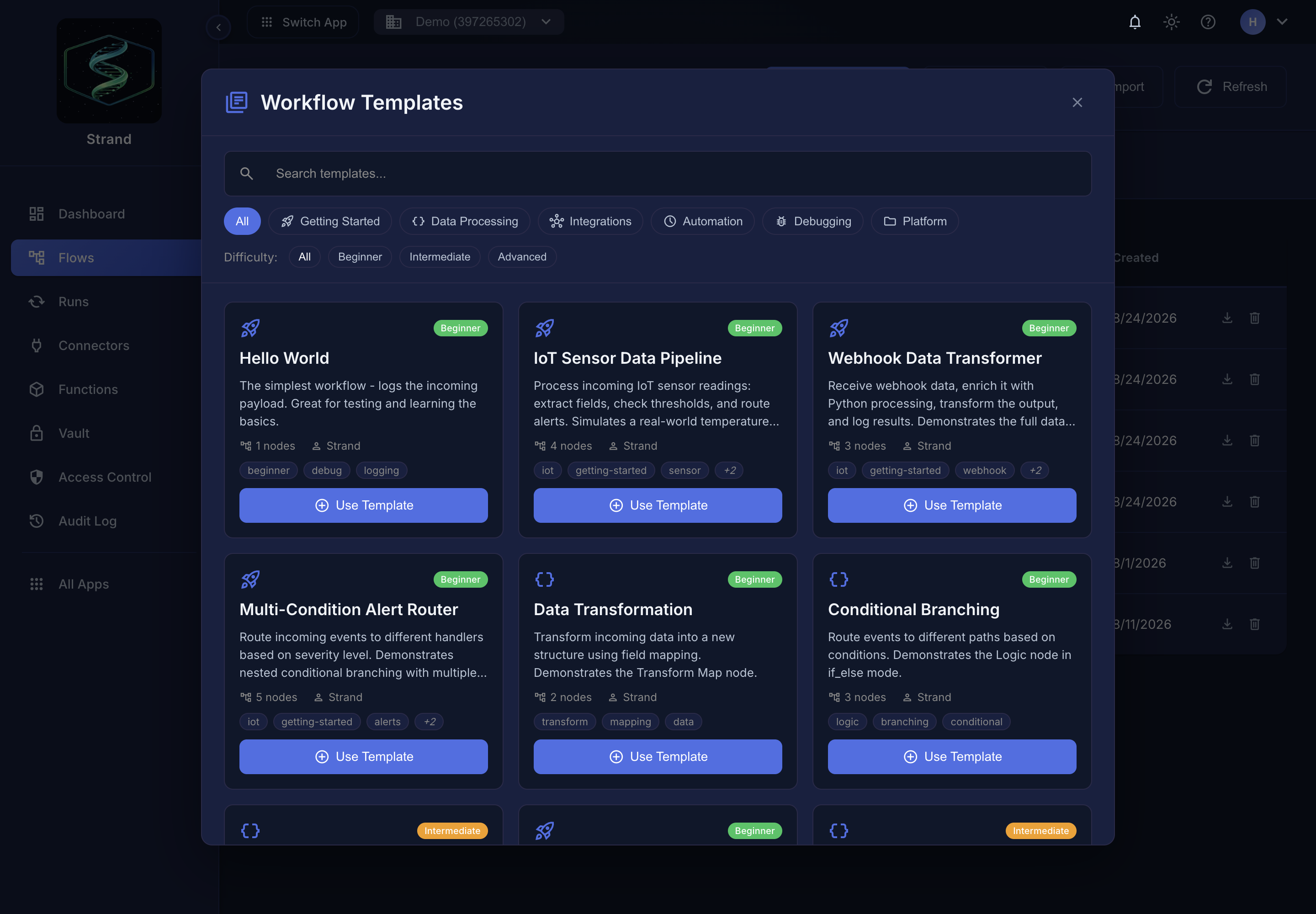 Each card shows its node count, difficulty, and tags; Use Template copies it into your account.
You can filter templates by:
- Category -- narrow down by use case (e.g., Getting Started, Platform, Data Processing)
- Difficulty -- find templates that match your experience level
- Tag -- search by specific capabilities like
iot,security,slack, orcontact
Templates are read-only blueprints. When you create a workflow from a template, you get a full copy that you can modify freely. Changes to your workflow never affect the original template.
Categories#
Templates are organized into six categories:
| Category | Description |
|---|---|
| Getting Started | Simple workflows to learn the basics. No connectors required. |
| Data Processing | Transform, filter, loop over, and route data through workflows. |
| Integrations | Connect to external APIs and services like Slack and databases. |
| Automation | Automate tasks with scheduling, delays, and triggers. |
| Debugging | Patterns for testing, error handling, and workflow validation. |
| Platform | Cross-platform workflows combining Contact, Strand, and Surface. |
Difficulty Levels#
Each template has a difficulty rating so you can find workflows that match your experience:
- Beginner -- Simple workflows with basic concepts. Few nodes, no connectors or only zero-config connectors. Good starting points for learning Strand.
- Intermediate -- More complex logic and integrations. May involve multiple connectors, branching, and cross-service data flow.
- Advanced -- Complex patterns with many nodes, approval gates, AI analysis, and multi-connector orchestration. For users comfortable with the full Strand feature set.
Connector Requirements#
Many templates need connectors to interact with external services. Each required connector is described as a slot with a type, label, and description. When you select a template, the system checks whether your account already has the right connectors configured.
There are three possible readiness states for each slot:
| Status | Meaning |
|---|---|
| Ready | Exactly one active connector of the required type exists. It will be selected automatically. |
| Multiple | Two or more active connectors of the required type exist. You choose which one to use. |
| Missing | No active connector of the required type. You need to create one first, or the system can auto-provision it (see below). |
If a required connector slot is missing and cannot be auto-provisioned, you will not be able to create the workflow until you set up the required connector on the Connectors page.
Auto-Provisioning#
Some connectors are zero-config -- they use internal platform service tokens and require no setup from you. When a template needs one of these connectors and your account does not have one yet, it is created automatically during workflow creation.
The zero-config connectors are:
| Connector Type | Name | What It Does |
|---|---|---|
surface.platform |
Surface | Scan payloads for threats using the platform security scanner |
contact.platform |
Contact | Send messages and update entity state via the Contact service |
When you create a workflow from a template that requires surface.platform or contact.platform, and you have not set one up yet, the system will:
- Check if an active connector of that type already exists on your account
- Reuse the existing connector if one is found
- Create a new one automatically if none exists
You do not need to configure credentials, endpoints, or any settings for these connectors. They work out of the box.
Zero-config connectors mean that many platform templates can be deployed with literally zero setup. Pick a template, click create, and it is live.
Creating a Workflow from a Template#
The full flow from template selection to a running workflow:
Browse the gallery
- Filter by category, difficulty, or tag to find a template that fits your use case.
View template details
- See the full description, node count, connector requirements, and whether sample input is available.
Readiness check
- The system checks your account for the required connectors and reports per-slot status (ready, multiple, or missing).
Map connectors
- For slots with multiple matching connectors, select the one you want. For missing slots that are auto-provisionable, the system handles it. For missing slots that are not auto-provisionable, go to the Connectors page and set one up first.
Create the workflow
- The workflow is created as a published copy. It is active and ready to receive events immediately. You can optionally override the name and description.
Test with sample input
- If the template includes sample input, it is pre-populated in the test runner so you can verify the workflow works without crafting your own test data.
Workflows created from templates are published immediately and are live as soon as you create them. There is no draft state.
Cross-Platform Templates#
The Platform category contains templates that combine multiple Tendrl services -- Contact, Strand, and Surface -- into unified workflows. These templates demonstrate the full power of the platform by orchestrating data across service boundaries.
There are eight cross-platform templates:
Surface Payload Scanner#
Difficulty: Beginner Connectors: Surface (auto-provisioned)
The simplest Surface workflow. Scan any incoming payload for security threats and branch on the result. The Surface connector returns a threat level (Clean, Informational, Suspicious, or Malicious), a safety score (0--100), and any extracted IOCs (URLs, IPs, domains). The workflow checks the safe flag and routes to a clean path or threat path. Informational is treated as safe by default -- it is only blocked if you add informational to the Surface node's reject_on list.
Contact Message Security Filter#
Difficulty: Beginner Connectors: Surface (auto-provisioned)
Receives a message from a Contact entity (triggered by message tags), extracts the message content from Contact's nested payload structure, scans it through Surface for threats, and logs the result. The simplest cross-platform template -- connect a Contact entity to Strand via tags, and every message gets automatic security screening.
IoT Security Gateway#
Difficulty: Intermediate Connectors: Surface (auto-provisioned), Slack (user-configured), Contact (auto-provisioned, optional)
The flagship cross-platform template. A Contact entity receives IoT data (sensor readings, device commands, firmware payloads), Strand scans it through Surface for threats, then routes the result: clean data is forwarded to a downstream Contact entity, while threats trigger a Slack alert with full scan details. Set up a complete IoT security pipeline in under five minutes.
Firmware Validation Pipeline#
Difficulty: Advanced Connectors: Surface (auto-provisioned), Slack (user-configured), Contact (auto-provisioned, optional)
A Contact entity receives a firmware update notification, Strand scans the firmware payload through Surface, then routes by result: clean firmware is auto-approved (entity state updated to "approved"), suspicious firmware goes through a human approval gate for review, and malicious firmware is auto-rejected with a Slack alert. Demonstrates the approval node for human-in-the-loop security decisions.
AI Threat Triage#
Difficulty: Advanced Connectors: Surface (auto-provisioned), OpenAI (user-configured), Slack (user-configured)
Scan incoming data through Surface, and when threats are detected, use AI (OpenAI) to analyze the IOCs and generate actionable recommendations. The AI analysis and original scan results are posted to Slack as a formatted threat intelligence brief. Combines security scanning with AI analysis for rapid threat assessment.
Compliance Audit Pipeline#
Difficulty: Advanced Connectors: Surface (auto-provisioned), HTTP (user-configured, for storage), Slack (user-configured, optional)
A scheduled or triggered workflow for periodic security auditing. Receives batch data (API payloads, configuration files, or log entries), scans through Surface, evaluates a compliance score, posts the audit report to your storage backend via HTTP, and alerts via Slack if the compliance threshold is not met. Ideal for recurring security compliance checks.
Auto-Publish and Contact Exposure#
Templates that include "contact" in their tags are designed to be triggered by Contact entities. When you create a workflow from one of these templates, two things happen automatically:
Contact exposure
- The workflow is automatically exposed to Contact, making it visible for tag-based triggering.
Tag copying
- The template's tags are copied to the workflow (up to 10 tags). This enables Contact's tag-matching system to route messages to the correct workflow without any manual configuration.
The result is that a Contact entity sending messages with a matching tag will automatically trigger the Strand workflow. No additional wiring is needed.
Only templates with the "contact" tag get this automatic exposure. All other templates create standard workflows that are triggered via the Strand API or scheduling.
Sample Inputs#
Most templates ship with realistic sample input data that you can use to test the workflow immediately after creation. The sample input is pre-populated in the test runner, so you can click Run Test without writing any JSON.
Sample inputs are designed to exercise the interesting paths in the workflow. For example:
- The IoT Sensor Data Pipeline template includes a temperature reading above the threshold, so the alert branch fires
- The Multi-Condition Alert Router includes a
"critical"severity, so you see the critical handling path - The Contact Message Security Filter includes a complete Contact payload structure with nested entity data
The sample input is returned in the creation response, so the frontend can load it directly into the test panel.
Export and Import#
You can share workflows between accounts or back them up using export and import.
Exporting a Workflow#
Export converts a workflow into a portable JSON template. Potential secrets are always redacted -- there is no way to export them in the clear:
- Always redacted: Hardcoded API keys, tokens, passwords in node configs, and sensitive values in variables, at any depth (a credential inside
headersorbodyis caught the same as one at the top level). The system detects common patterns (Base64 strings, Stripe keys, GitHub tokens, Slack tokens, AWS keys, JWTs) and keys with sensitive names (password, secret, api_key, token, etc.). - Safe to export: Vault references like
{{ vault.api_key }}(these are template strings, not actual secrets) and connector IDs (credentials stay in the connector, not in the workflow definition). - Redacted fields are replaced with
[REDACTED - Review before sharing]and listed in the export response so you know exactly what was removed.
Every export is recorded in the account audit log with the user who performed it and how many fields were redacted.
An exported workflow that hardcodes secrets will not run after import until you fill the redacted fields back in. To make a workflow survive an export/import round trip, reference secrets through the vault ({{ vault.my_key }}) or through a connector instead of typing them into the node.
Importing a Workflow#
Import accepts any valid template JSON structure (from an export or a hand-crafted template). The imported workflow is created as a new unpublished workflow. You can optionally override the name and description during import.
Required fields in the template JSON:
nodes-- Dictionary of node definitions (required)edges-- List of edge connections (defaults to empty)variables-- Dictionary of workflow variables (defaults to empty)
Importing a redacted export#
If the template came from an export, the redacted fields are removed on import rather than stored -- otherwise the workflow would send [REDACTED - Review before sharing] to a third party as if it were a real credential. The import response lists exactly which fields were dropped in redacted_fields, and the app shows them to you after the import finishes.
Those fields are left empty, so the workflow will fail on its first run until you fill them in or point them at the vault. Everything else -- URLs, node structure, vault references, connector IDs -- comes through untouched.
