 Tendrl
Approval Node
The Approval node pauses workflow execution until a human approves or rejects continuation.
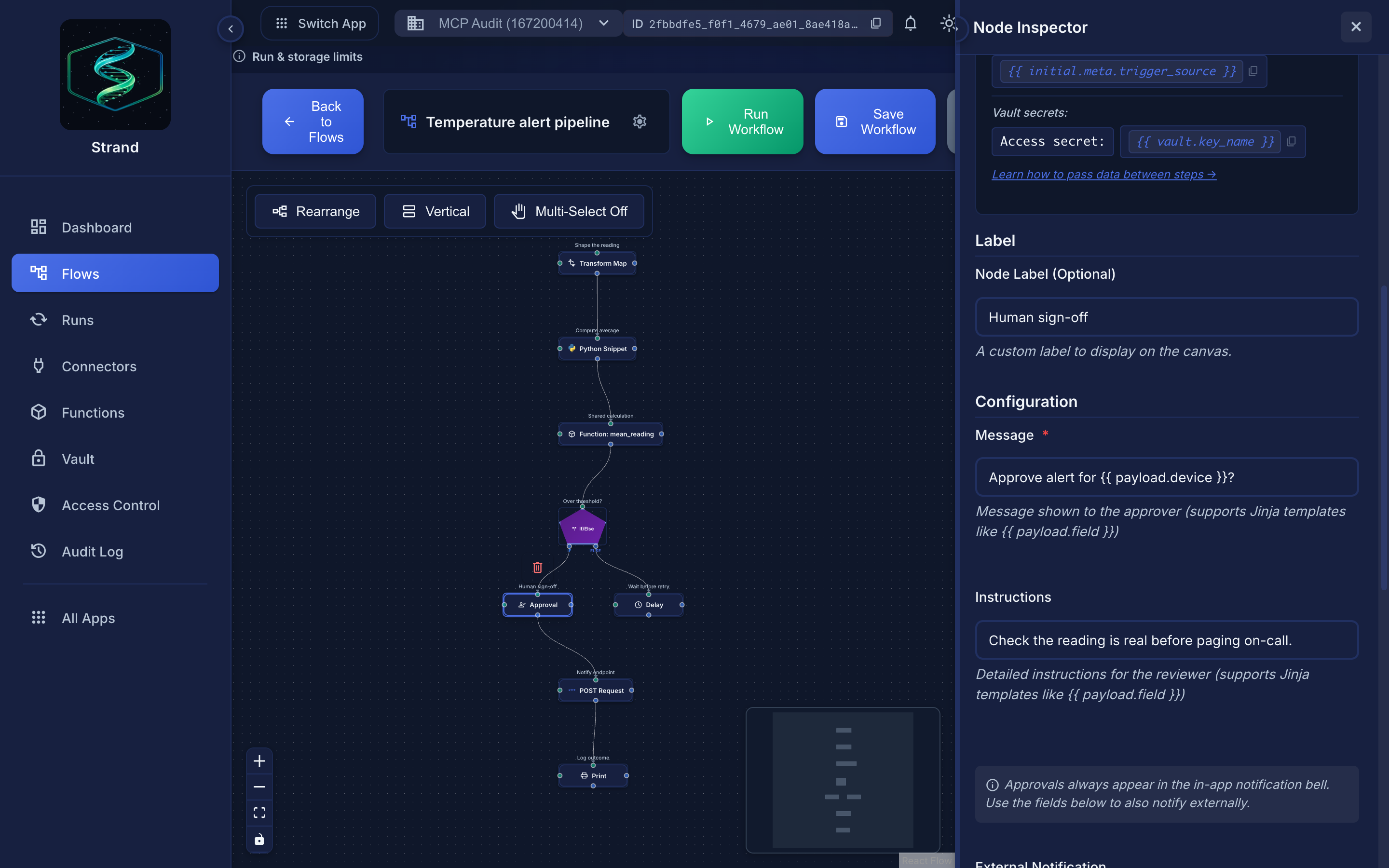 Both fields accept Jinja, so an approver sees the actual values rather than a generic prompt.
Overview#
Approval nodes insert human-in-the-loop checkpoints into your workflows. When execution reaches an approval node, the workflow pauses and waits for a person to review the data and explicitly approve or reject before downstream nodes run.
- Order review before processing
- Content moderation before publishing
- Expense approval before payment
- Data validation before external API calls
- Compliance checks before sensitive operations
How It Works#
- Workflow execution reaches the approval node
- The node records the approval message and pauses (status:
waiting_approval) - A notification appears in the app's notification bell
- Optionally, an external notification is sent via a connector (Slack, email, etc.)
- A reviewer approves or rejects, either in-app or via a signed external link
- On approve: the workflow resumes and downstream nodes execute
- On reject: the branch stops and the run is marked
completed_with_errors
If your workflow has parallel branches, only the branch with the approval node pauses. Other branches continue executing normally. The run enters waiting_approval status after all other branches complete.
Configuration#
| Field | Type | Required | Description |
|---|---|---|---|
message |
string | Yes | Message shown to the approver (supports Jinja2 templating) |
instructions |
string | No | Detailed instructions for the reviewer (supports Jinja2 templating) |
notify_connector_id |
string | No | Connector to send an external notification (select from Slack, email, or text message connectors) |
notify_channel |
string | No | Slack channel for the notification (e.g., #approvals). Only shown when a Slack connector is selected. Supports Jinja2 templates. |
notify_recipients |
string | No | Recipient email addresses or phone numbers (comma-separated). Only shown for email or text connectors. Supports Jinja2 templates. |
token_expiry_hours |
integer | No | Hours until the external approval link expires (default: 168 = 7 days, max: 720). Only shown when a notification connector is selected. |
Examples#
Simple Approval Gate#
Configuration:
{
  "message": "Please review this order before processing."
}
Pauses the workflow and shows the message to the reviewer in-app.
With Dynamic Data#
Configuration:
{
  "message": "New order from {{ payload.customer_name }} for ${{ payload.total }}. Please approve to proceed with fulfillment.",
  "instructions": "Check that the order total is under $10,000 and the customer is in good standing."
}
Uses Jinja2 templating to include event data in the approval message.
With Slack Notification#
Configuration:
{
  "message": "Content ready for review: {{ payload.title }}",
  "instructions": "Verify the content meets brand guidelines before publishing.",
  "notify_connector_id": "your-slack-connector-id",
  "notify_channel": "#content-approvals",
  "token_expiry_hours": 48
}
Sends a notification to the #content-approvals Slack channel with the approval message and a direct approve/reject link. The link expires in 48 hours.
With Email Notification#
Configuration:
{
  "message": "Expense report from {{ payload.employee }}: ${{ payload.amount }}",
  "instructions": "Approve if amount is within department budget.",
  "notify_connector_id": "your-email-connector-id",
  "notify_recipients": "{{ payload.manager_email }}",
  "token_expiry_hours": 72
}
Sends an email to the manager (dynamically resolved from the event payload) with the approval message and a direct approve/reject link.
Approval Methods#
Approvals always appear in the in-app notification bell. There are three ways to additionally notify reviewers and handle the approval:
1. In-App Approval#
A notification appears in the notification bell. The reviewer opens the run detail page, sees an approval banner with the message, instructions, and approve/reject buttons with an optional comment field. No additional configuration needed.
2. Connector-Before-Approval Pattern#
Place any connector node (Slack, email, HTTP, etc.) before the approval node in your workflow graph. This gives you full control over the notification format and destination. The workflow pauses at the approval node regardless.
3. Built-In External Notification#
Select a notification connector (Slack, email, or text message) directly in the approval node config. When the workflow pauses, Strand automatically sends the approval message and a signed approval link to the specified channel or recipients. The recipient can approve or reject directly from the link, with no login required.
External approval links use HMAC-SHA256 signed tokens. They cannot be forged or tampered with. Each link is single-use (the approval can only be actioned once) and expires after the configured token_expiry_hours.
Statuses#
| Status | Meaning |
|---|---|
waiting_approval |
Workflow is paused, waiting for a human decision |
completed |
Approved: the step passed and downstream nodes execute |
rejected |
Rejected: the branch stops |
Approval Metadata#
After an approval action, the step run's execution_metadata includes:
On approval:
{
  "approval_message": "...",
  "approved_at": "2024-01-15T10:30:00Z",
  "approved_via": "app",
  "approval_comment": "Looks good, proceed."
}
On rejection:
{
  "approval_message": "...",
  "rejected_at": "2024-01-15T10:30:00Z",
  "rejected_via": "token",
  "rejection_reason": "Total exceeds budget."
}
The approved_via / rejected_via field indicates whether the action was taken in-app ("app") or via an external link ("token").
Best Practices#
Tips
- Write clear, actionable approval messages that include the key data the reviewer needs
- Use
instructionsfor review criteria so approvers know what to check - Use Jinja2 templating to surface relevant data directly in the message
- For time-sensitive approvals, set a shorter
token_expiry_hours - Place a Print or Transform node before the approval to prepare a summary of the data
- Runs in
waiting_approvalstay paused indefinitely until someone acts; there is no auto-timeout - Each approval node must be approved individually; if a workflow has multiple approval nodes in sequence, they are handled one at a time
- Anyone with workflow execute permission on the account can approve or reject in-app
- External approval links can be used by anyone who has the link (secured by HMAC signature and expiry)
Related#
- Node Types Overview - All available node types
- External Approval Links - Detailed guide on approve-from-link
- Jinja2 Templating - Dynamic data in approval messages
- Error Handling - Handling rejected approvals
