 Tendrl
Scan Profiles
Scan profiles let you customize scanning behavior per use case: controlling which file types are accepted, size limits, automatic threat response, and what happens when a scan completes.
Each API key is linked to a scan profile, so different keys can have different scanning rules. No middleware, no conditionals in your code; scans made with a given key automatically apply that key's profile rules.
Profile settings#
In the Surface dashboard, go to Scan Profiles in the sidebar and expand any profile to edit it:
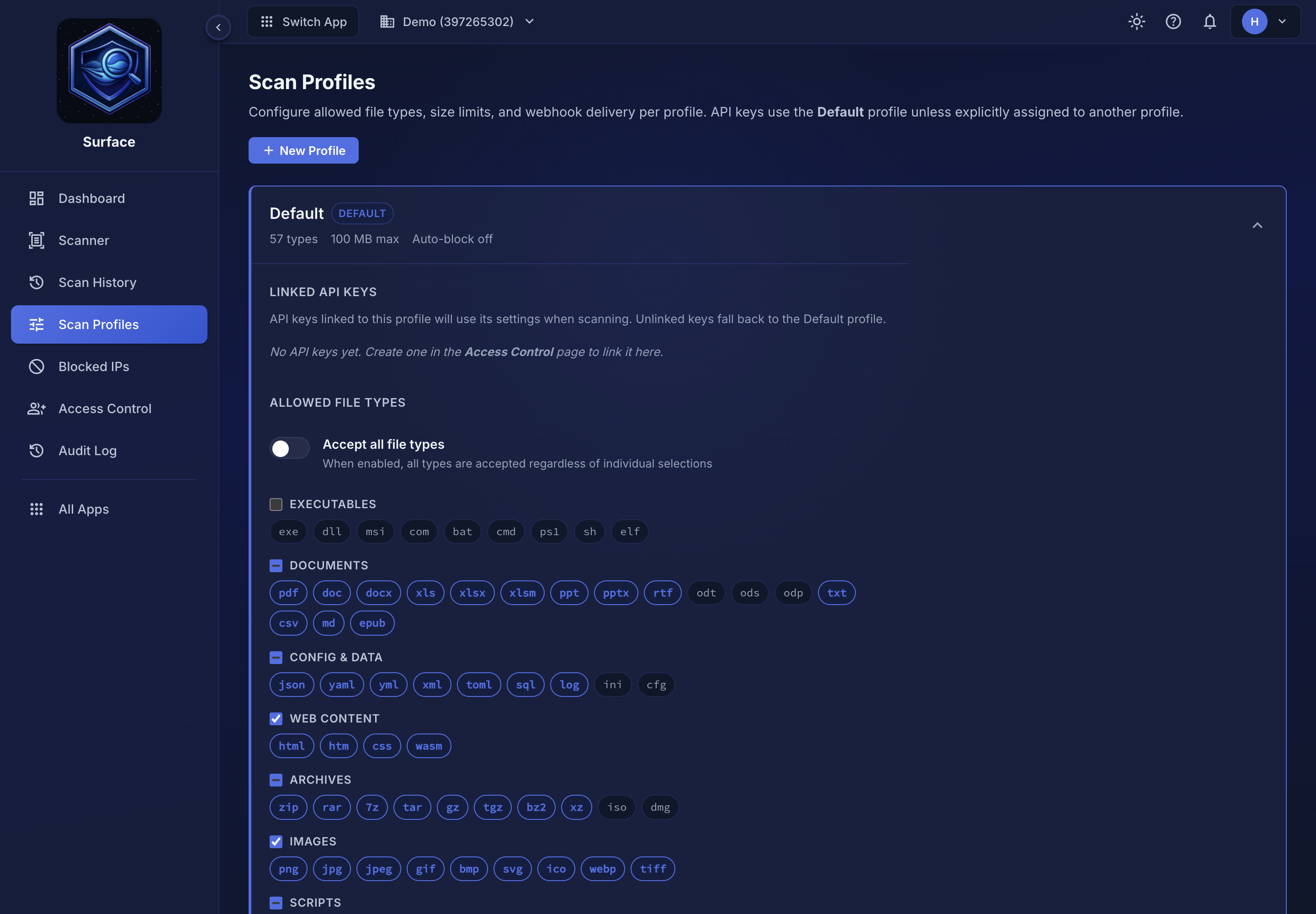 Expanding a profile reveals its settings. File types are chosen by category, not typed in.
| Field | Description |
|---|---|
| Name | Display name |
| Allowed types | Chosen with checkboxes, grouped by category (executables, documents, config & data, web content, archives, images, scripts). Tick a category to accept all of its extensions, or pick individual chips. Turn on Accept all file types to accept everything regardless of the selections below it |
| Max file size | Maximum upload size in bytes. Files exceeding this are rejected before scanning |
| Enable payload scan | Allow scanning raw text payloads under this profile (default: true) |
| Auto-block IP | Automatically block any IP that uploads a malicious file |
| Webhook URL | Receive scan results via HTTP POST when scans complete |
| Webhook API key | Used for HMAC-SHA256 signature verification and optionally sent in the Authorization header |
Auto-block IPs#
Auto-block IP is a Standard and Pro feature. When enabled on a profile, any IP address that uploads a file classified as malicious is automatically blocked from further uploads (a Risky result, a blocked agent action, does not count) — the kind of threat response logic that normally takes days to build (rate limiting, block lists, enforcement middleware), as a single checkbox in the profile settings.
Turning the checkbox on for a custom profile is refused with a 403 (code: "plan_required") on Free and Starter. The built-in Agentic profile, seeded on every account and not editable (see built-in profiles below), still shows the checkbox on regardless of plan — but the block itself only fires for accounts whose plan includes this feature. On Free and Starter, scanning through Agentic behaves exactly like scanning through Default: a Malicious verdict comes back, nothing gets blocked.
Reviewing blocked addresses (below) is Standard and Pro, matching the feature. Removing one is not: DELETE /account/blocked-ips/{ip} works on every plan, including Free, so a block from before this page existed — or one left over from a downgrade — is never something only support can undo.
Reviewing blocked addresses#
Blocks land on the Blocked IPs page in the sidebar, which lists every address auto-blocked for uploading a malicious file. Until you turn Auto-block IP on for at least one profile, the page stays empty.
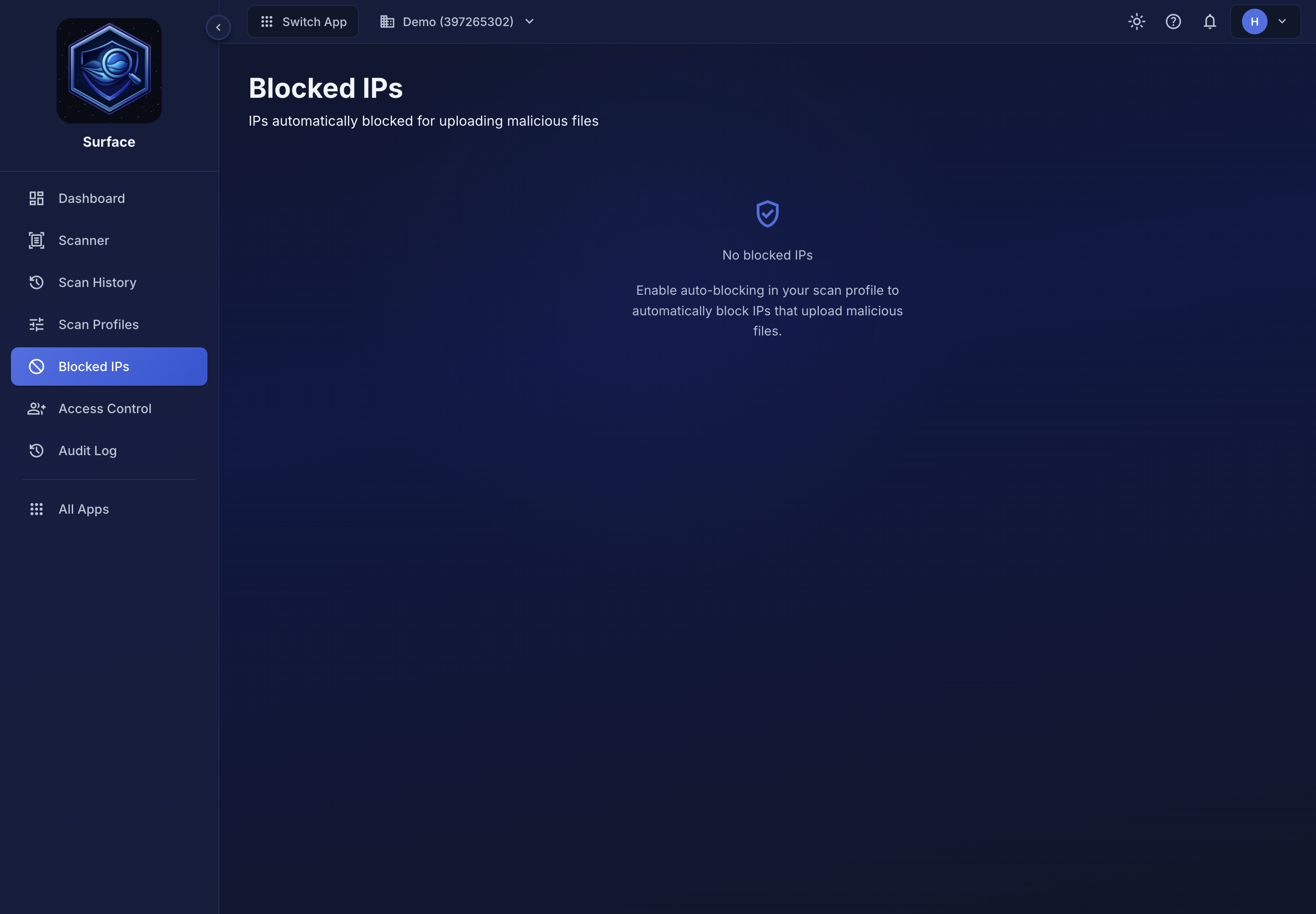 Blocked IPs with auto-blocking not yet enabled. The page itself explains the prerequisite.
Blocked addresses are kept for your plan's retention window — see Data Retention if you need to look up why an address was blocked.
Why restrict file types?#
Your users probably only need to upload a narrow set of file types: profile photos, PDFs, spreadsheets. Accepting everything means a user could upload an executable or script you never intended to receive. Restricting by type stops unexpected files before they ever reach the scanner and gives users a clear error if they accidentally select the wrong file.
Common use-case presets#
| Use case | Suggested types |
|---|---|
| Profile photo / avatar | jpg jpeg png gif webp svg |
| Document upload (generic) | pdf doc docx xls xlsx ppt pptx txt csv rtf md |
| Spreadsheet / data import | csv xls xlsx json xml yaml |
| File sharing / bundle | zip pdf jpg jpeg png doc docx |
| Web content / templates | html htm css json svg woff woff2 |
| Email / attachments | eml msg pdf doc docx xls xlsx zip |
| IoT / firmware | bin uf2 hex |
| Mobile app review | apk ipa |
| Accept all (not recommended for public uploads) | The Accept all file types toggle on the profile, or the built-in All File Types profile |
New accounts start with a default profile that covers images, documents, config files, web content, archives, fonts, email, firmware, and mobile packages. Executables and scripts are excluded by default.
Built-in profiles#
Every account starts with three profiles:
| Profile | Behavior |
|---|---|
| Default | All engines enabled with standard thresholds. Payload scanning on |
| All File Types | Accepts all file types. All engines enabled. File size is still bounded by the profile's 100 MB default and your plan ceiling |
| Agentic | Tuned for AI/agent workloads: payload scanning on, all AI engines (prompt injection, code extraction, sensitive data, tool call) at strict sensitivity, all file types accepted, and auto-block-IP enabled |
Engine configuration#
Scroll down within the profile editor to the Engine Configuration section and use the toggles to choose which scan engines run for that profile. The Enable payload scanning switch above it controls whether raw text payloads can be scanned at all under this profile.
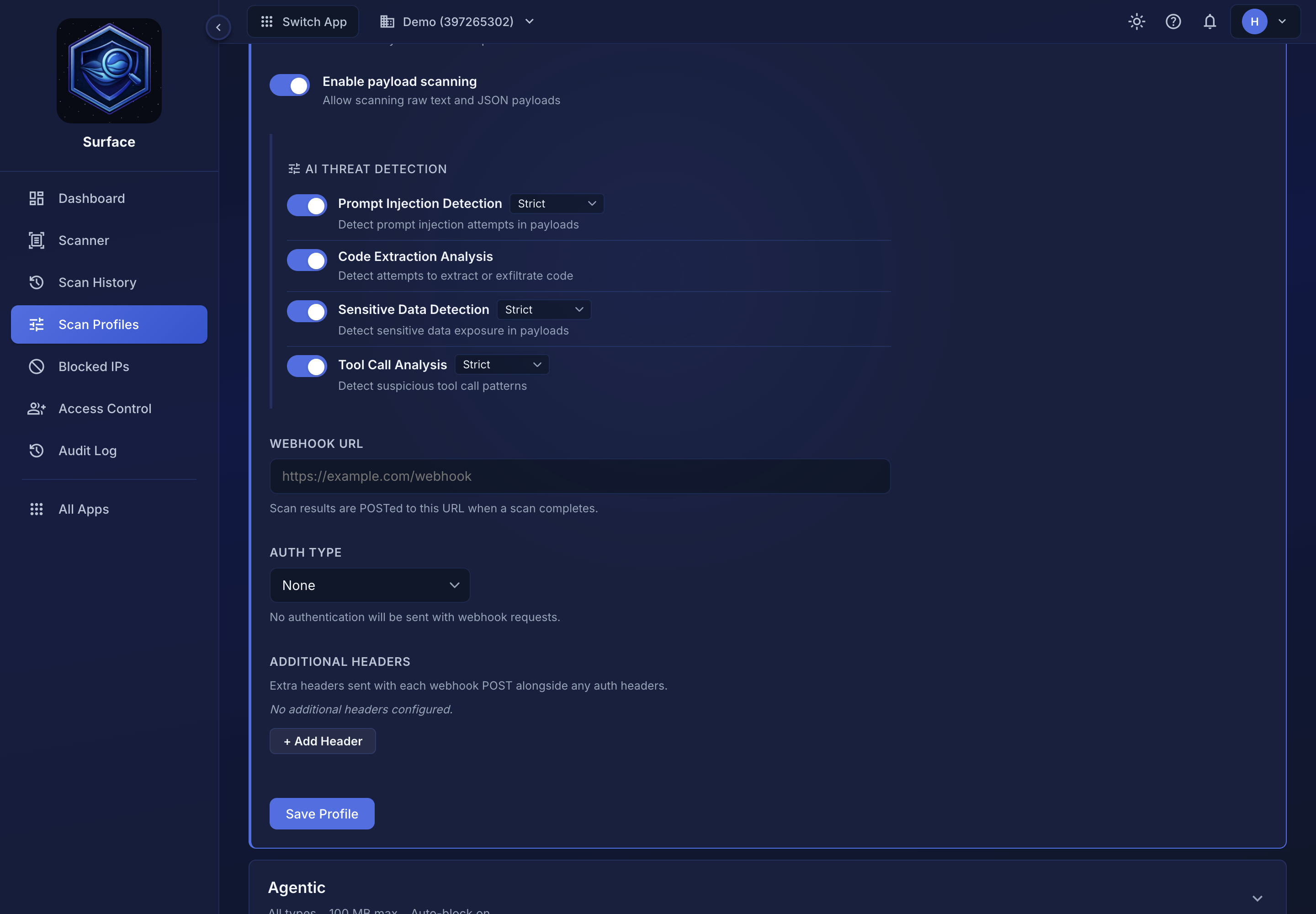
Pattern rules and the ML classifier are core engines that always run. The toggleable engines below are for agentic/content security analysis:
- Prompt Injection: detects prompt injection attempts in text payloads
- Code Extraction: identifies embedded code, including SQL injection and XSS patterns
- Sensitive Data: finds credentials, PII, and API keys
- Tool Call Analysis: detects suspicious tool/function call patterns
These settings change the verdict, not just what the result shows:
- Off: the engine doesn't run, so it adds nothing to the safety score and can't cause a Review or Block.
- On: the engine runs, and its sensitivity decides which of its findings count toward the score and the verdict.
Prompt Injection, Sensitive Data and Tool Call Analysis have a sensitivity. Code Extraction is on or off only, because every indicator it reports is high-confidence.
| Sensitivity | Which findings count |
|---|---|
strict (default) |
Every finding |
normal |
High and medium severity; low-severity findings are ignored |
permissive |
High severity only |
Sensitive Data and Tool Call Analysis only report high- and medium-severity findings, so for them normal behaves the same as strict, and the profile editor offers just Strict and Permissive. All engines are enabled at strict by default.
For example, a payload whose only prompt-injection findings are medium severity gets Review at strict or normal and Allow at permissive. A high-severity injection still gets Block at permissive; only switching Prompt Injection off stops it.
Action screening, which judges agent tool calls against the context a request sends (context.strictness), is separate from these settings and runs either way.
<details> <summary>Configure via API</summary>
Each profile carries an engine_config JSON object that controls per-engine behavior. Pair it with enable_payload_scan (boolean, default true) to toggle payload scanning per profile.
| Field | Type | Description |
|---|---|---|
enable_payload_scan |
boolean | Enable or disable payload scanning for this profile. Default true |
engine_config |
object | Per-engine overrides. Omit a key to keep the default (enabled, strict sensitivity) |
{
  "enable_payload_scan": true,
  "engine_config": {
    "prompt_injection":   { "enabled": true, "sensitivity": "strict" },
    "code_extraction":    { "enabled": true },
    "sensitive_data":     { "enabled": true, "sensitivity": "normal" },
    "tool_call_analysis": { "enabled": true, "sensitivity": "strict" }
  }
}
Set "enabled": false to skip an engine. code_extraction is a simple on/off toggle; the others support sensitivity.
"Skip" means the findings are hidden from your response, not that the scan ignores them. Every engine runs on every scan, and the verdict reflects all of them. So a profile with prompt_injection disabled can still return a score lower than the findings you can see would explain. When that happens the response names the engines responsible in safetyScore.suppressedEngines, and repeats it in plain words in safetyScore.info, so the number is never unaccountable. Re-enable the engine to see the findings behind it.
This is deliberate. A profile decides how much detail you want to read, not how carefully the file is examined, so turning an engine off can never make a dangerous file look safe.
</details>
Webhooks#
Set a Webhook URL on a profile and Surface POSTs the full scan result to your server when each scan completes, signed with HMAC-SHA256. You can choose an auth type (API Key, Bearer Token, or Custom Header) and test the webhook from the profile panel before enabling it.
See Webhooks for the payload shape, signature verification examples, and handler patterns.
